TradeAlgo mobile app
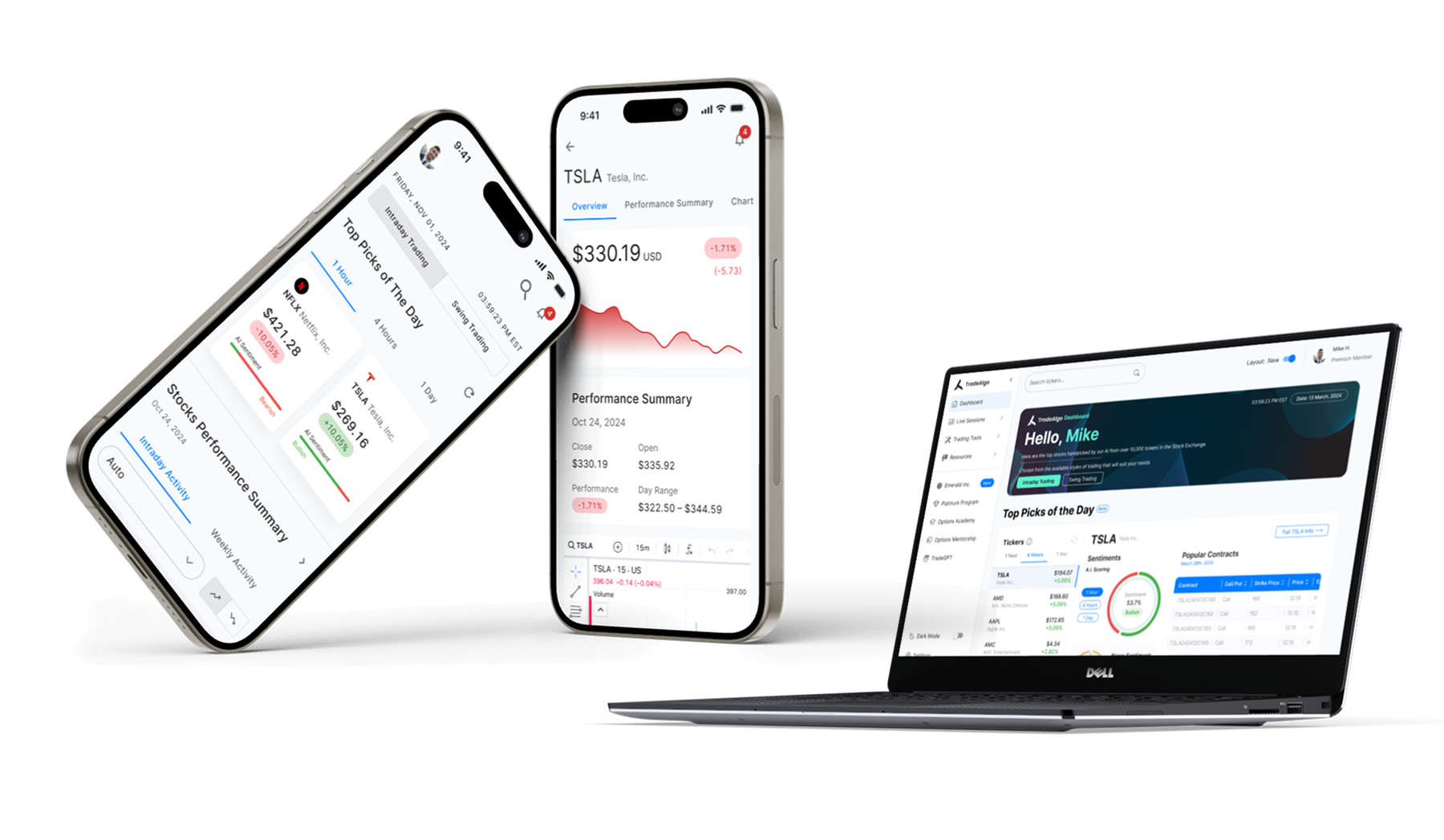
Translating the TradeAlgo web experience into a mobile app design.
Project background
TradeAlgo, a trading analytics platform offering AI-driven market insights and trading tools, was designed for the web, and lacked a mobile optimised experience. My role was to adapt its features into a seamless mobile design while ensuring consistency and usability across devices.
Structuring the experience
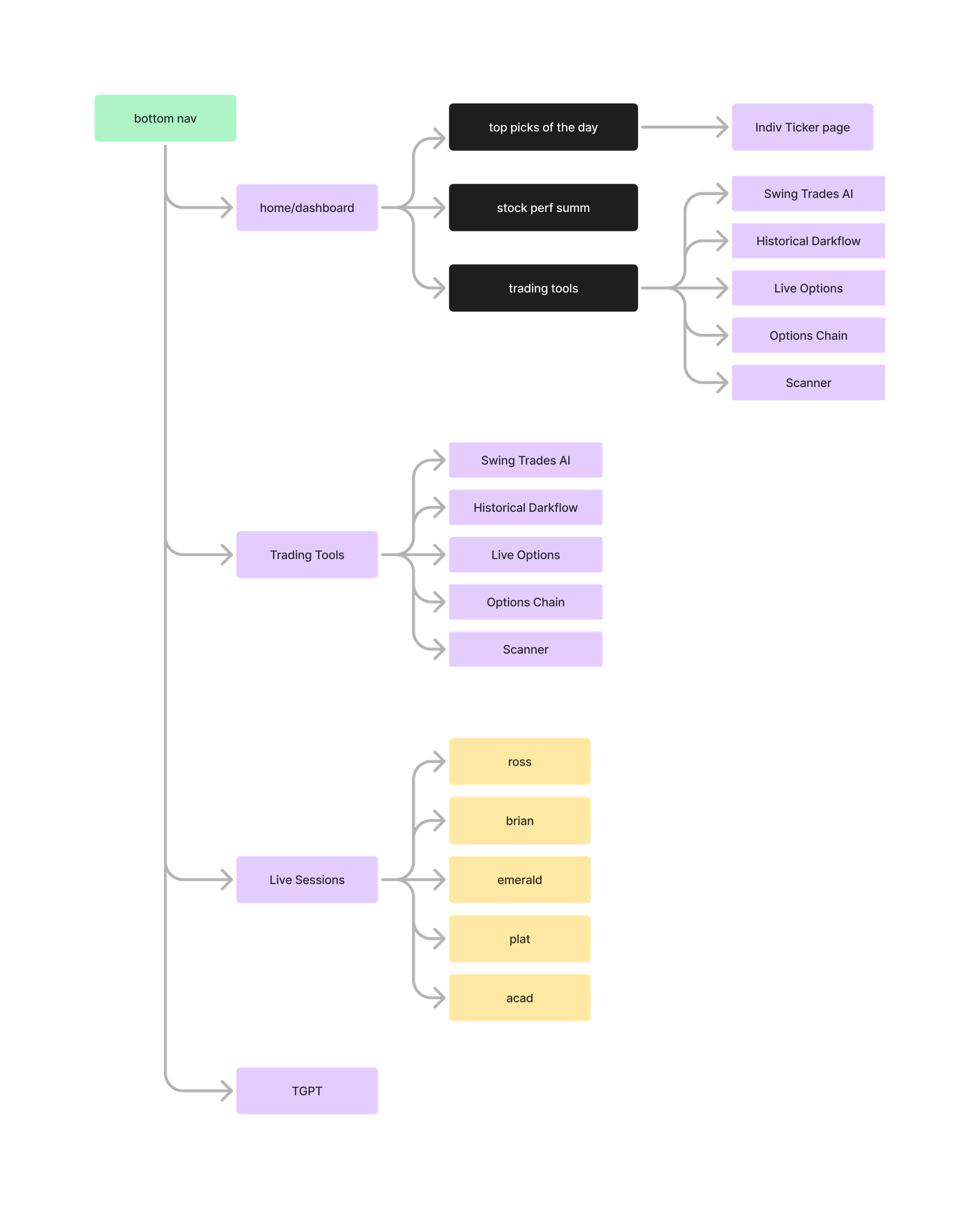
I started by analysing the web version’s information architecture to restructure it for a mobile-friendly experience. This included:
- Streamlining the navigation menu with bottom navigation. This was designed to provide quick access to the most frequently used features.
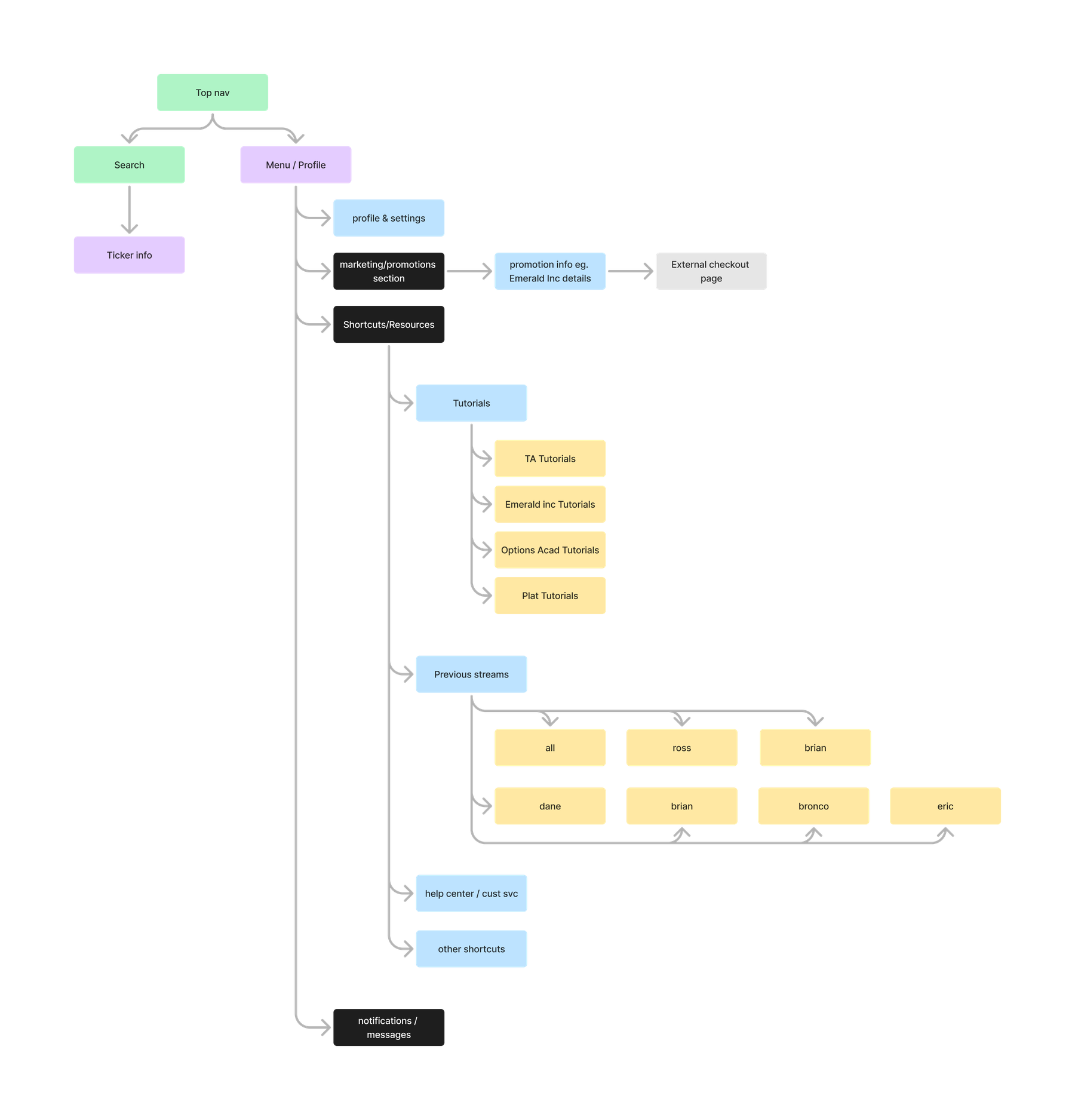
- Less frequently accessed functions, such as profile settings, promotions, support, tutorials, and notifications, were grouped under a dedicated Menu/Profile page for better organisation. This approach ensured that core actions remained easily accessible while maintaining a clean and intuitive interface.
Transforming the Dashboard for mobile usability
Adapting the Top Picks layout for mobile
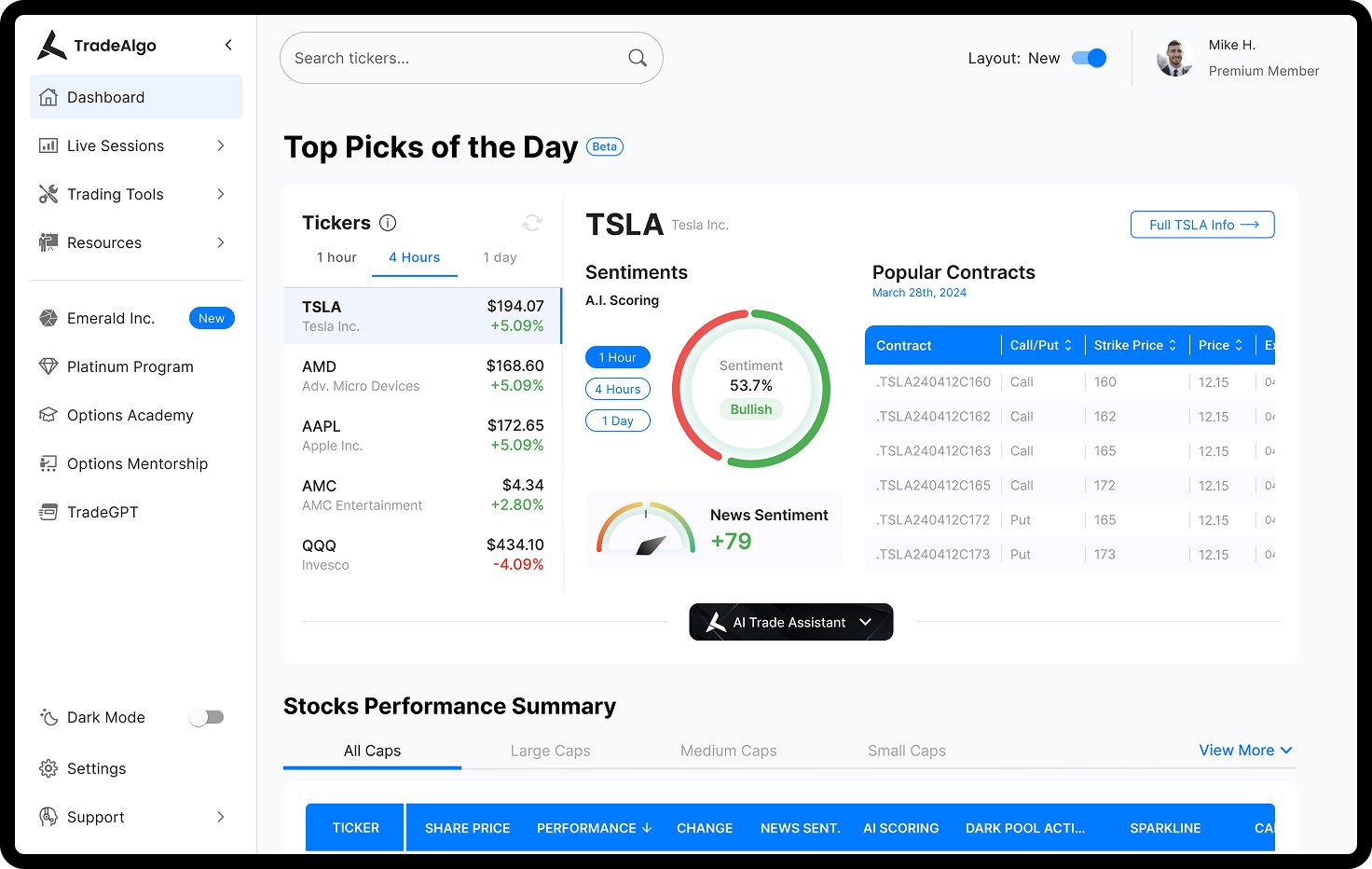
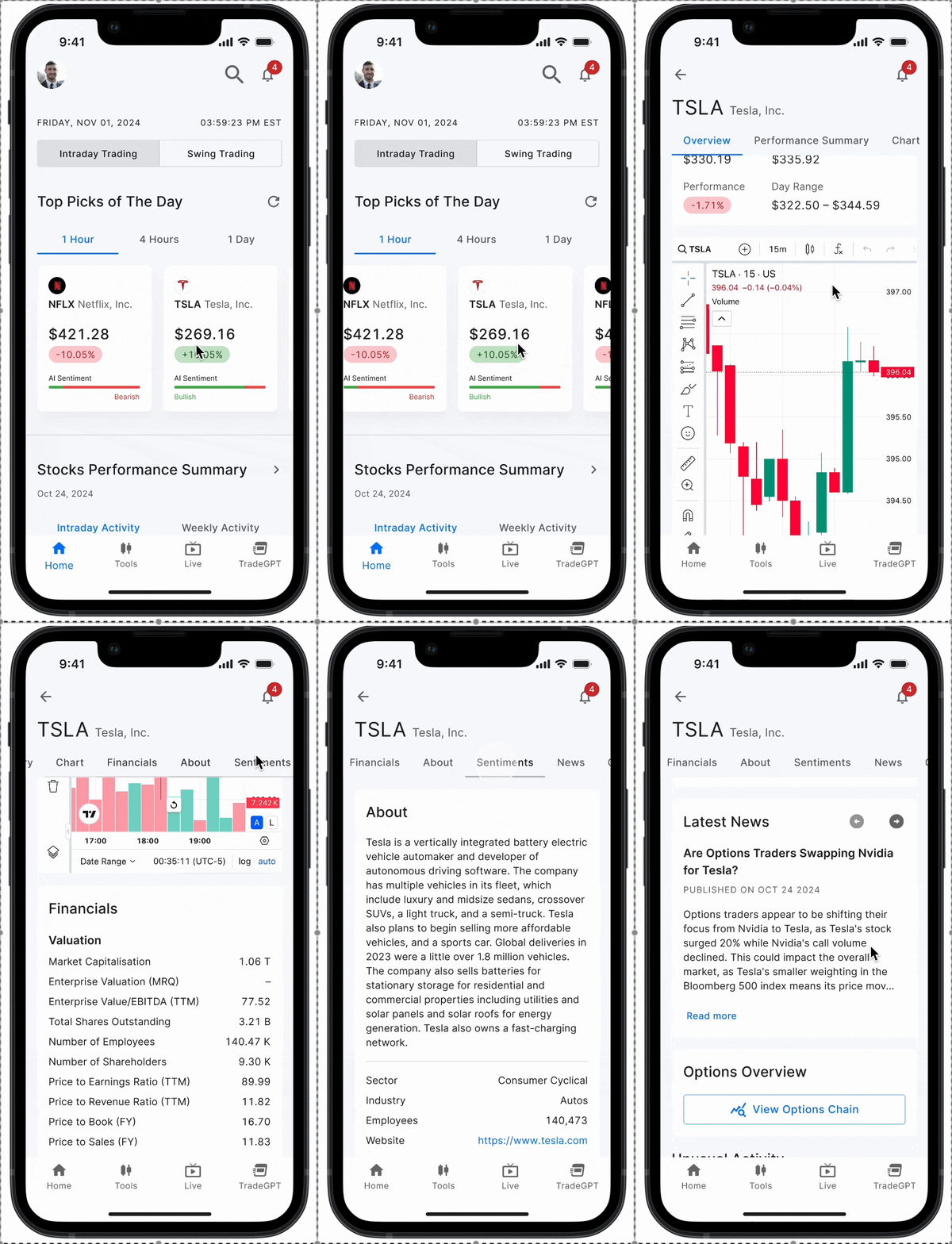
On web, the Top Picks section featured a split-view layout: a left column listing tickers with key price details and a right column displaying more in-depth insights like AI sentiment and popular contracts upon selection. Since this layout wouldn't translate well to a smaller screen, we redesigned it into a card-based format where each card provided key stock details at a glance. Tapping a card led users to the ticker page, maintaining the depth of information while improving usability on mobile.
Making Stock Performance data more accessible
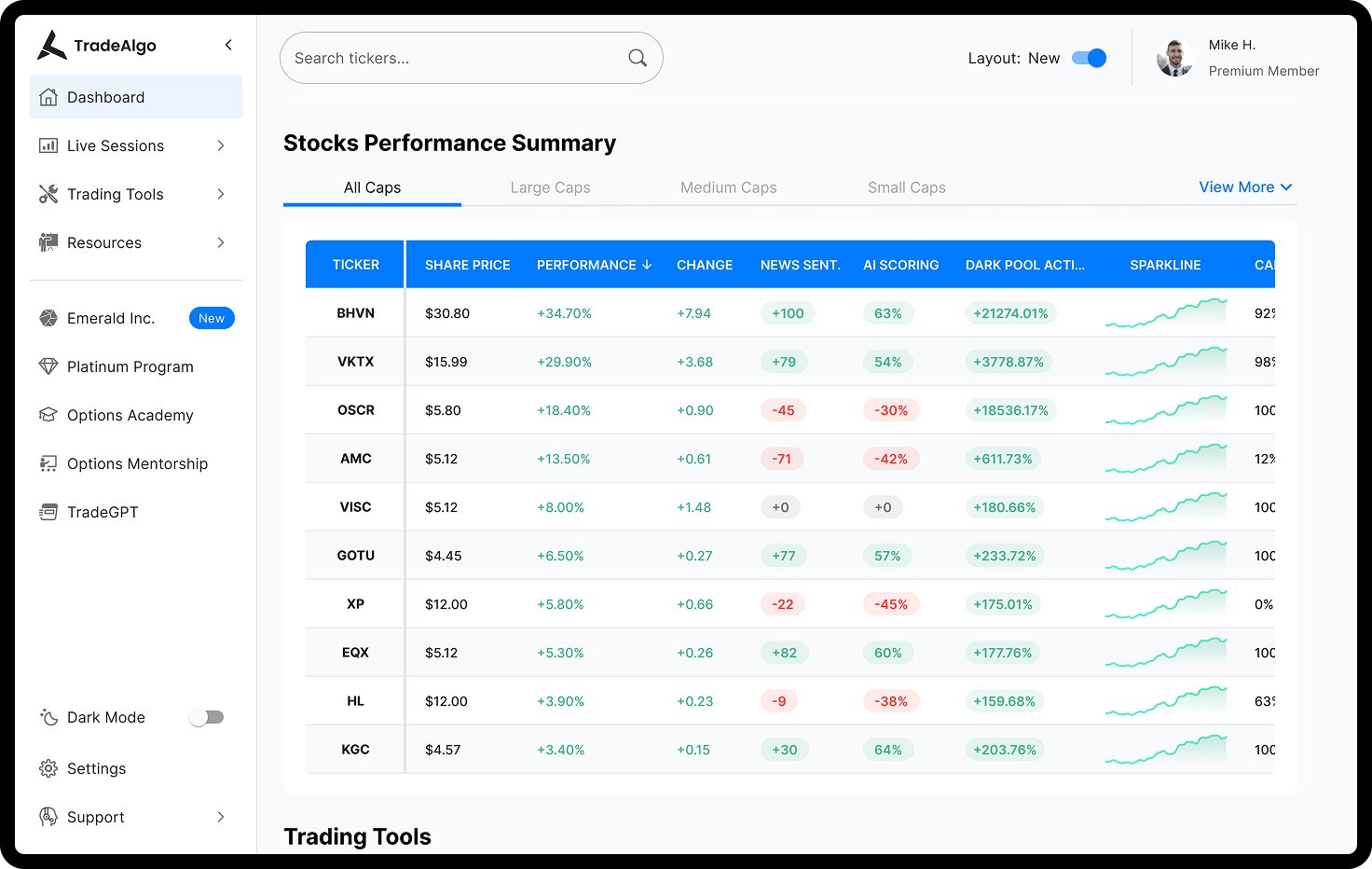
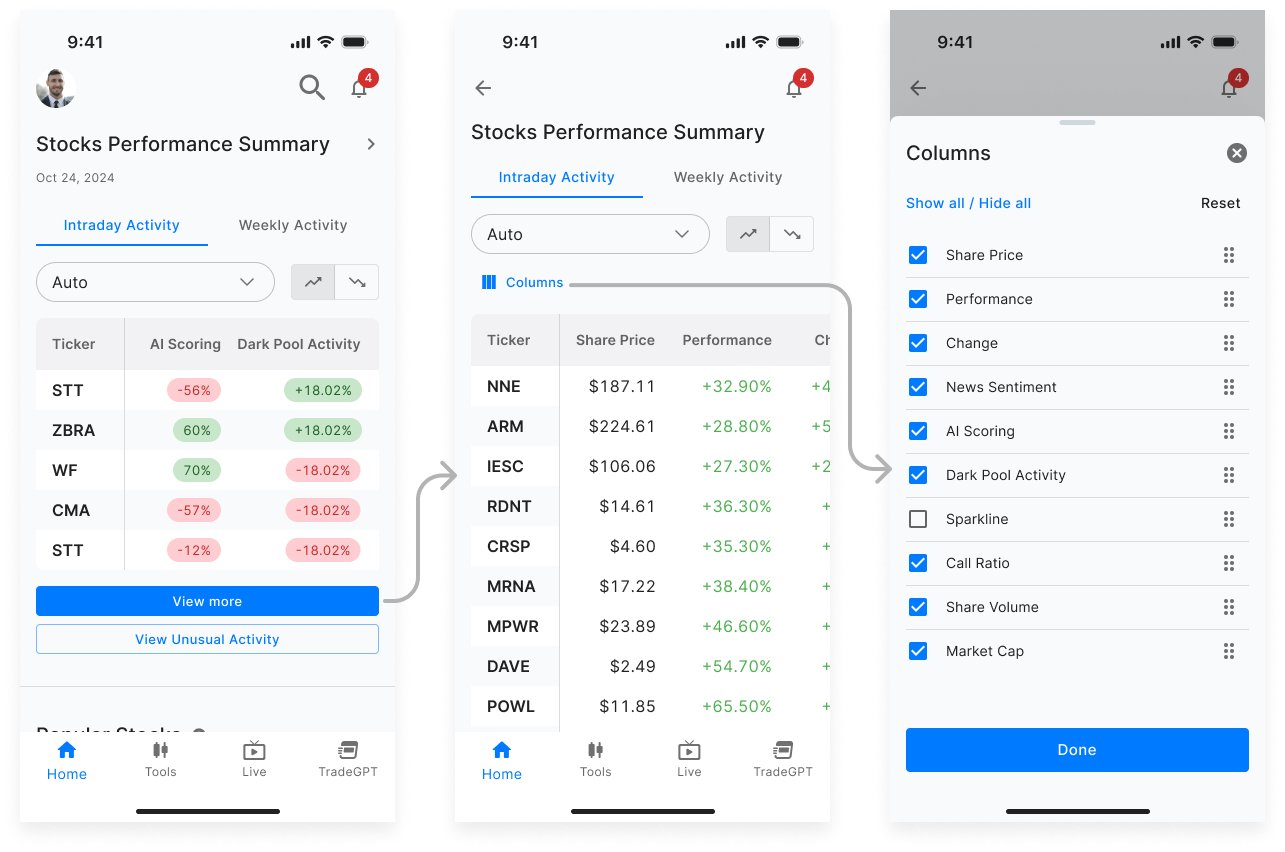
The web version displayed stock performance data in a more expansive layout, allowing users to view multiple stocks at once. For mobile, we streamlined this by showing only five tickers upfront for quick scanning, with a “View More” option leading to a dedicated Stock Performance Summary page. This page features a side-scrolling table for easy navigation and a column selector, giving users control over the data they want to see.
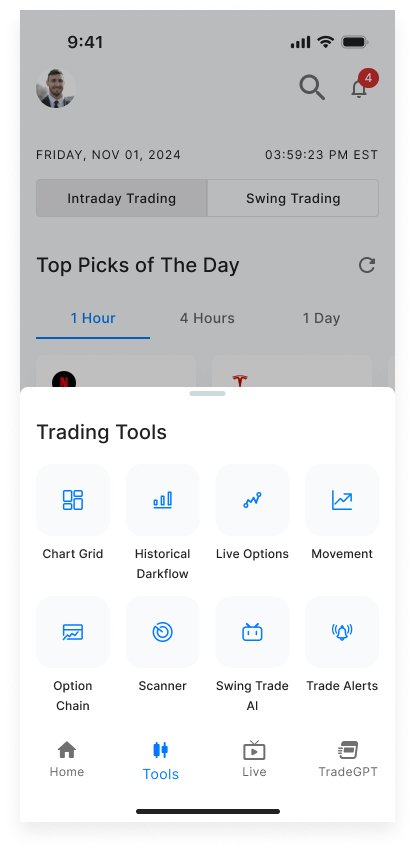
Streamlining access to Trading Tools
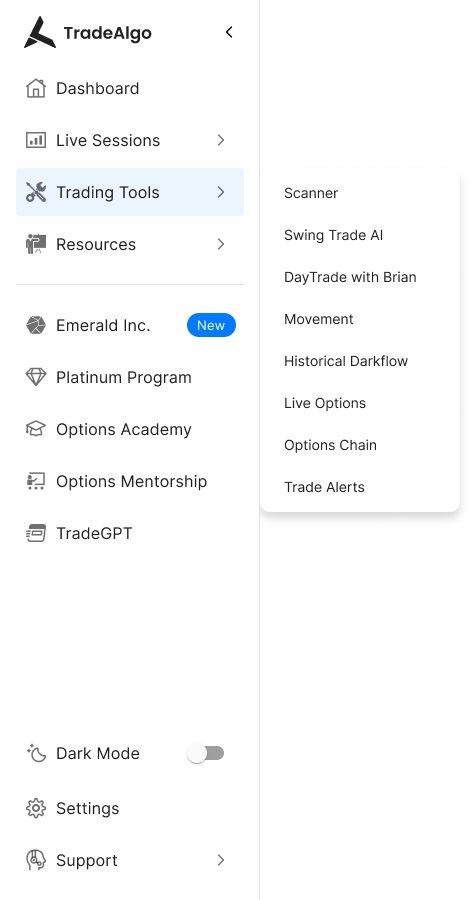
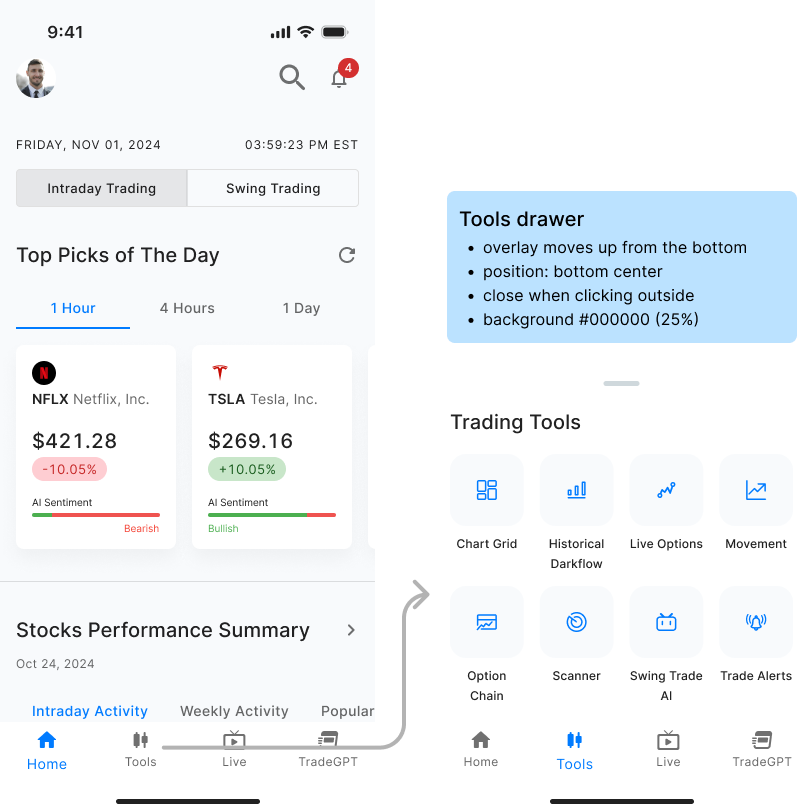
Trading tools are central to the user experience, so we ensured they were accessible with minimal taps. By integrating them directly into the bottom navigation and key touchpoints within the app, users could quickly access essential features without unnecessary friction.
Optimising the Ticker Page
Anchored navigation for quick access
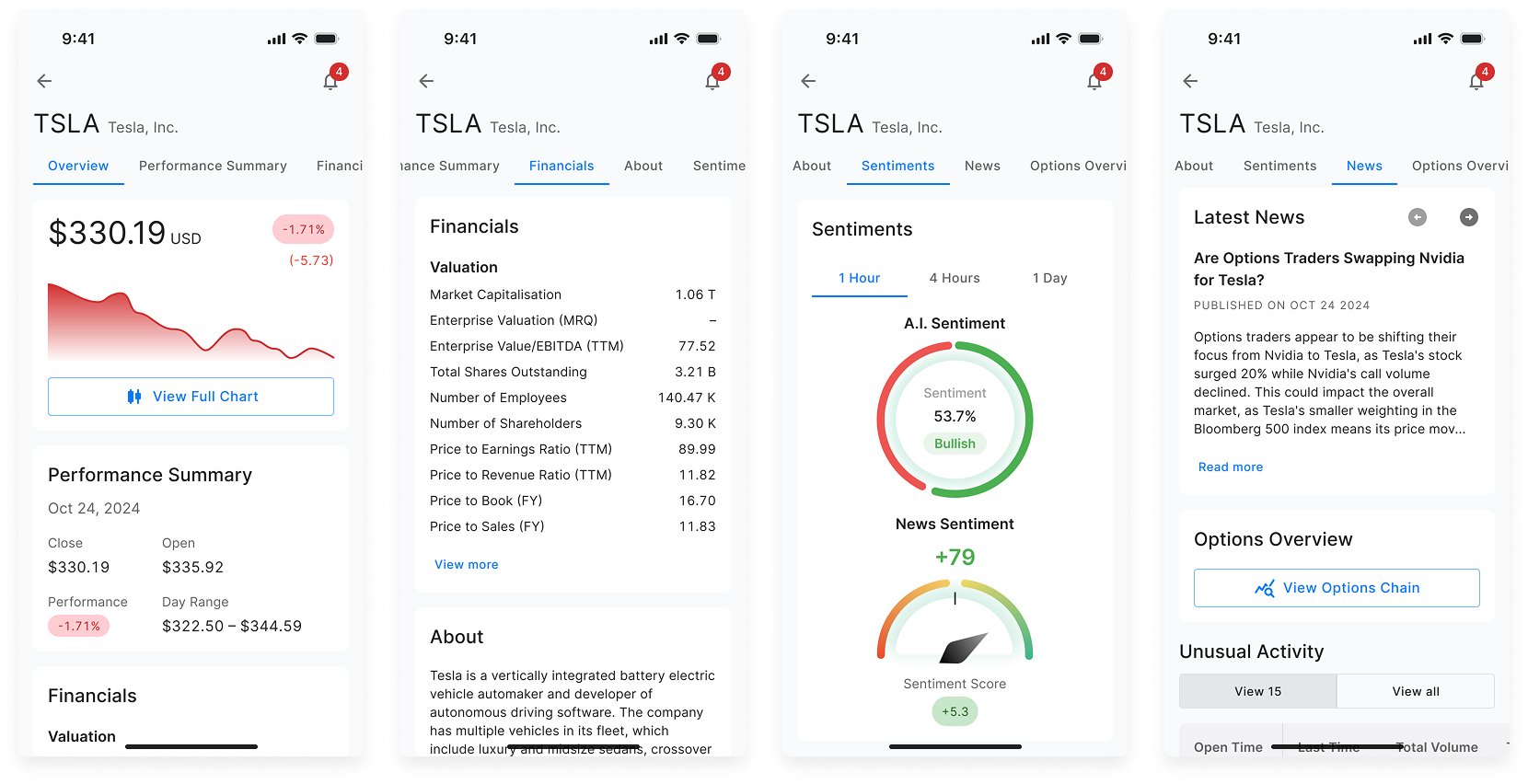
Navigating dense financial data on a mobile screen can be overwhelming, so we implemented anchored links to help users jump directly to key sections like Overview, Performance Summary, Financials, Sentiments, and News. This reduced the need for excessive scrolling and ensured users could quickly access the information they needed.
Expandable & Interactive Charts
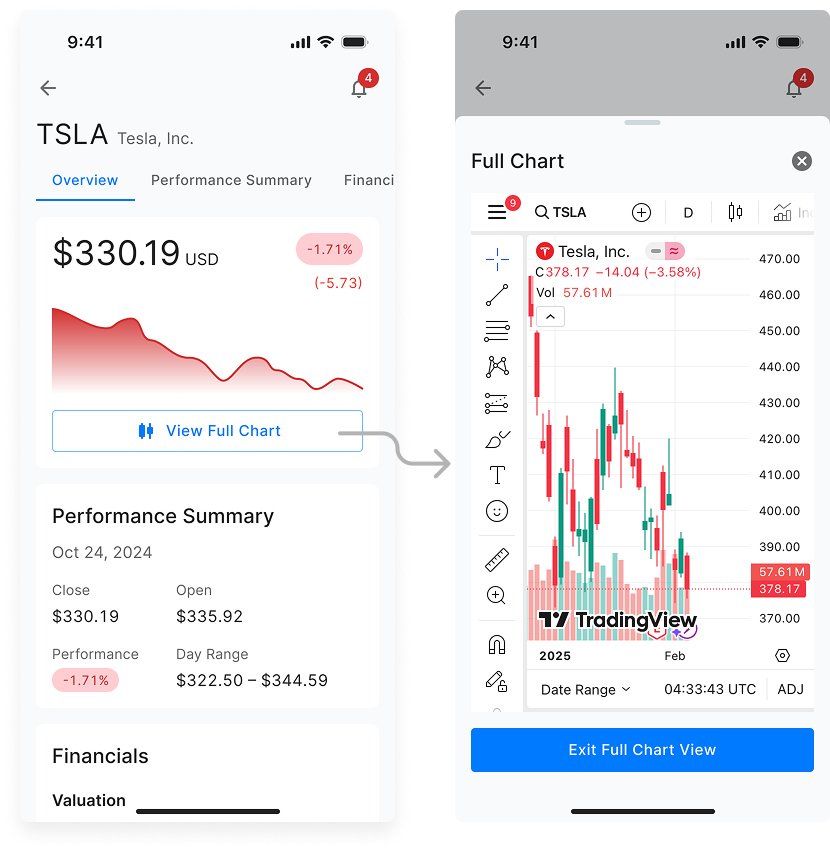
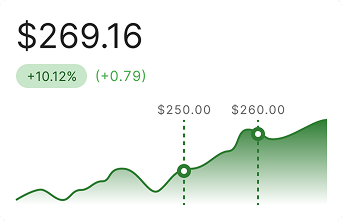
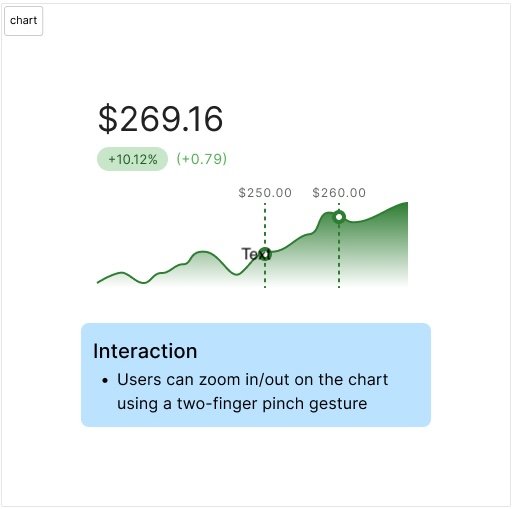
To balance detail and readability, we designed charts with an expandable option - users could tap a CTA to view a full-screen version for deeper analysis. Additionally, we introduced pinch-to-zoom functionality, allowing users to interact with the data more intuitively and analyse trends with precision.
Handoff to development
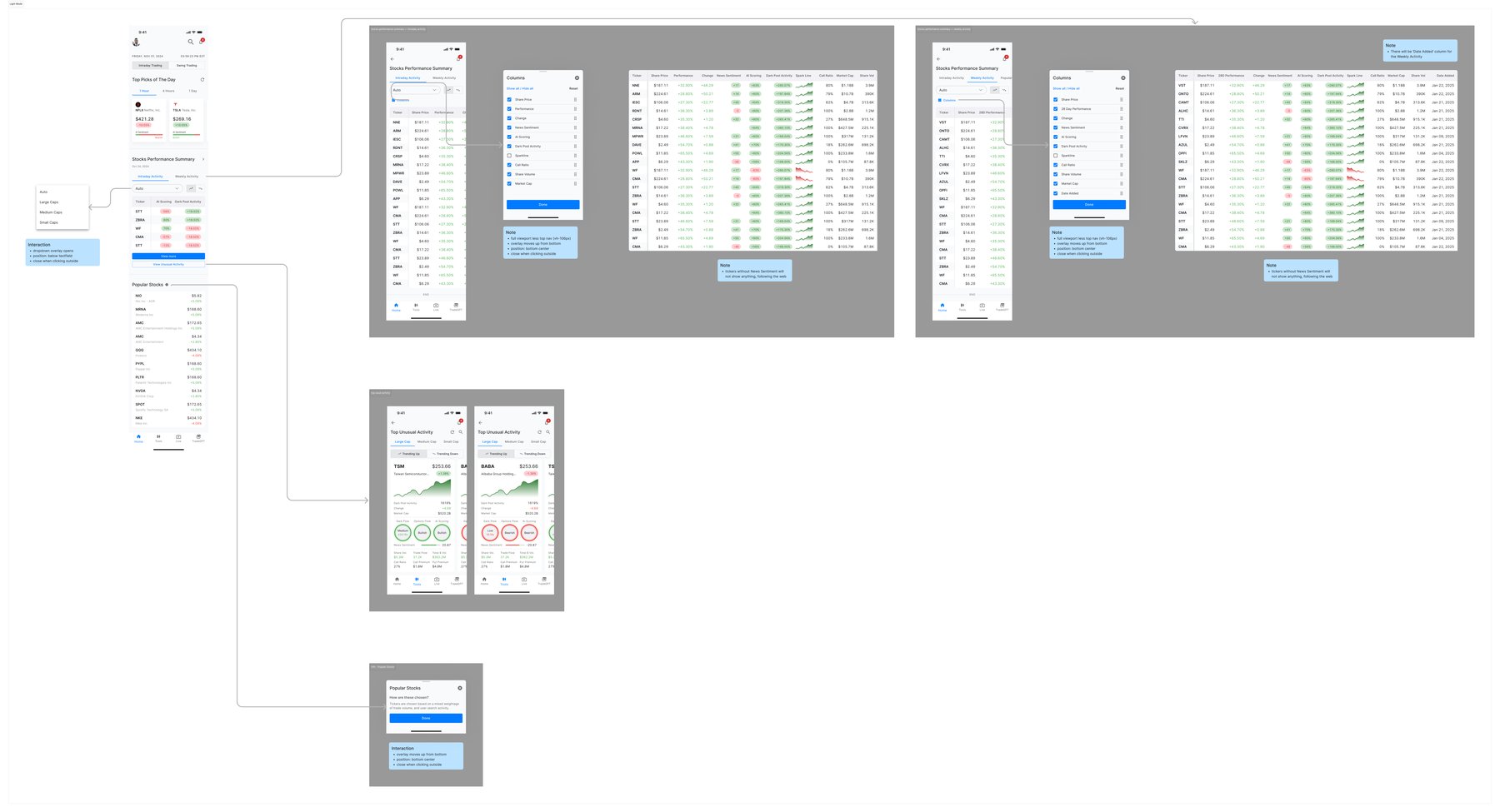
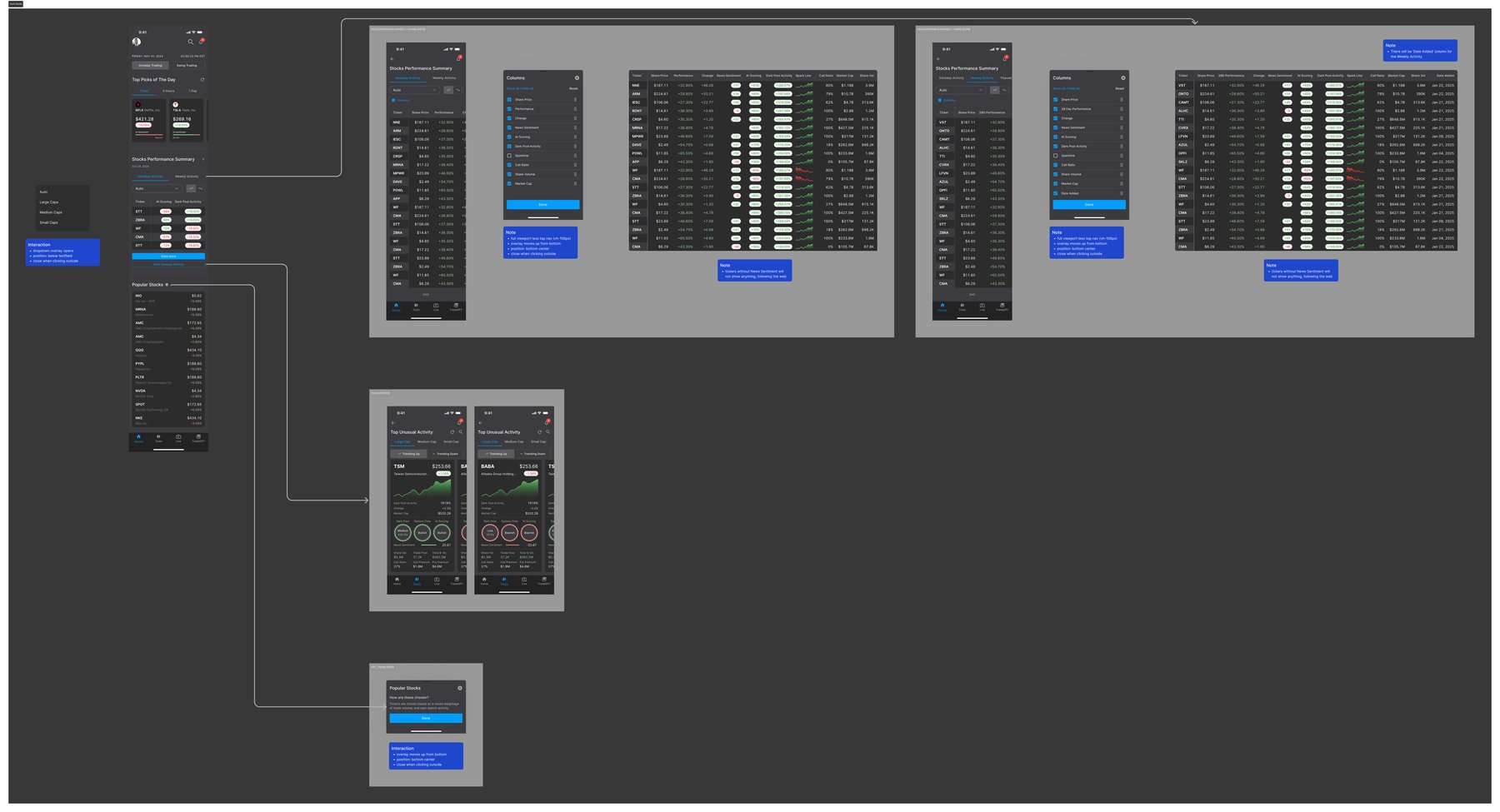
With the designs finalised, I prepared Figma files with clear documentation, interaction specs, and organised Figma files to ensure efficient implementation.
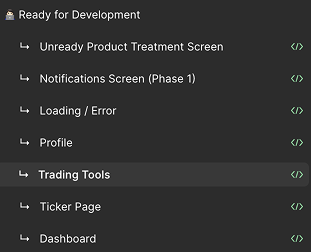
Structuring the Figma files for clarity
To keep the handoff organised, I structured the Figma files by splitting features into different pages, ensuring that each section remained focused and easy to navigate for developers.
Defining key interactions and gestures
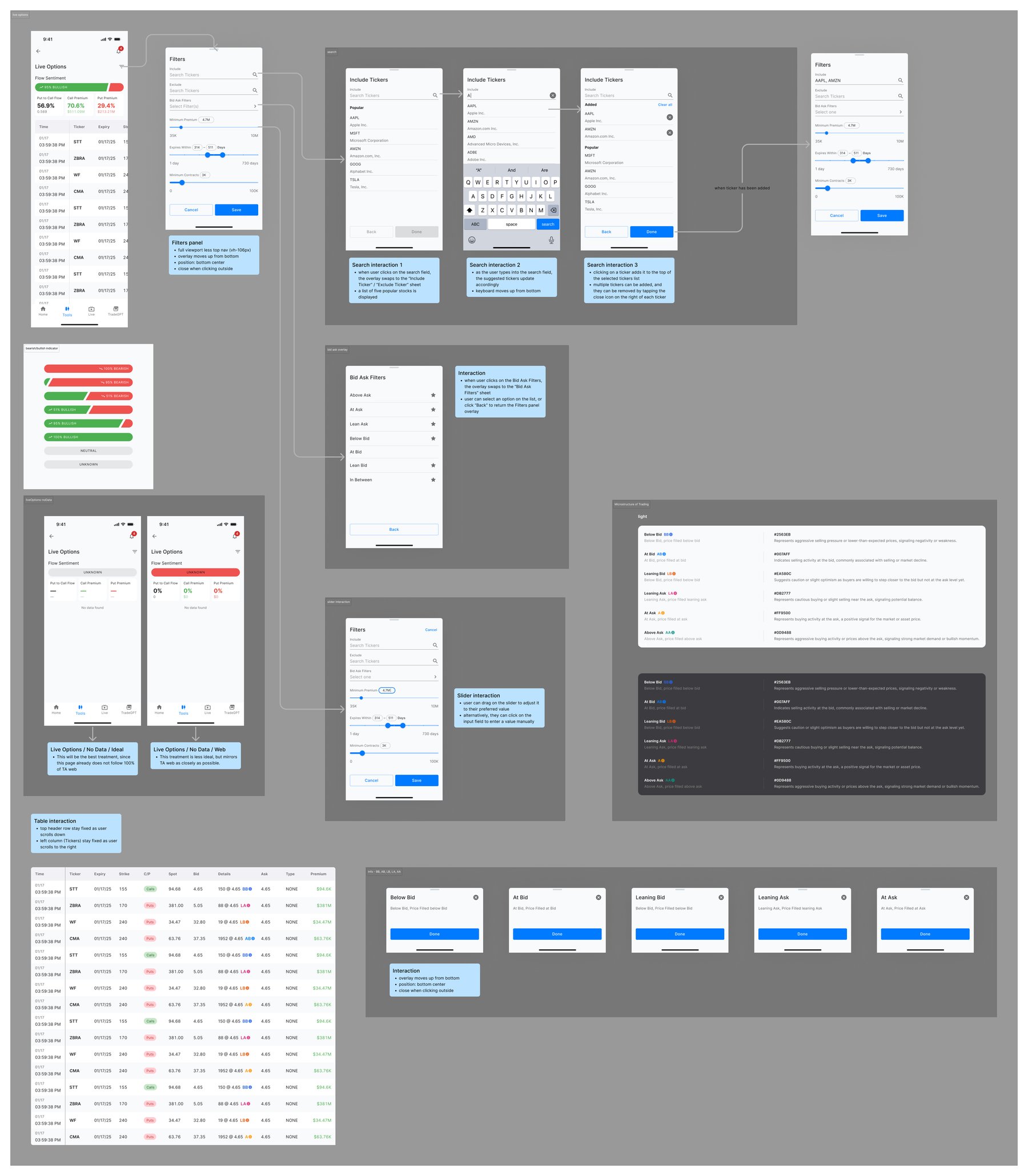
Since mobile trading tools rely heavily on interactivity, I detailed:
- Tap, swipe and pinch gestures
- Transitions and microinteractions
Light & dark mode variations
To enhance usability in different environments, we designed both light and dark mode versions of the app.
- We applied a systematic approach where each UI element adapted smoothly between modes without affecting usability.
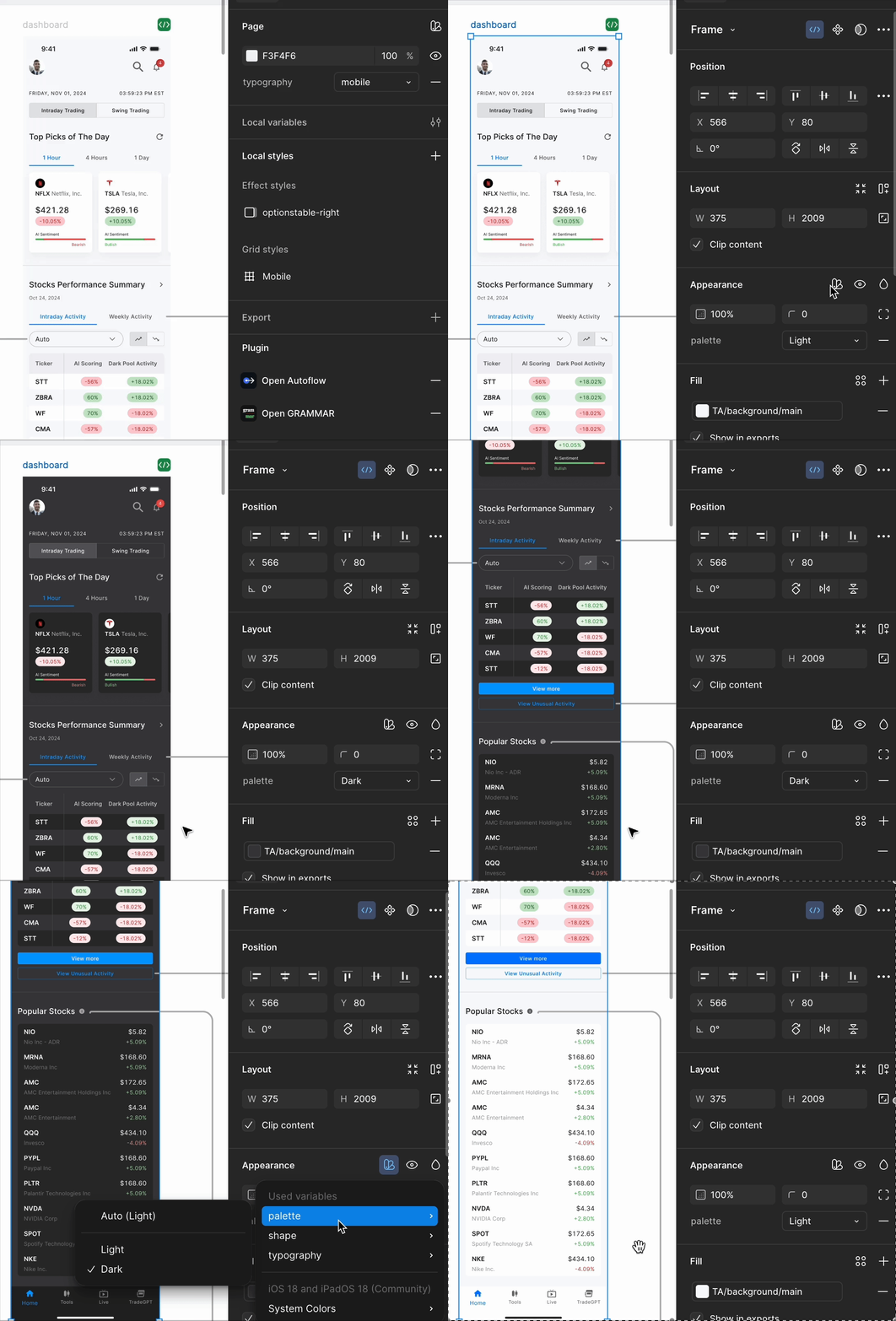
- We also created separate Light Mode and Dark Mode Figma files for developer handoff
Final thoughts
The TradeAlgo mobile app is currently in development, and we’re now in the quality check phase, closely reviewing how the designs translate in the build and making final adjustments with the development team. I'm excited to see the app come to life so that our users can use it on the go!