Vama video meetings
Crafting the Meetings functionality for Vama: An iOS mobile chat application
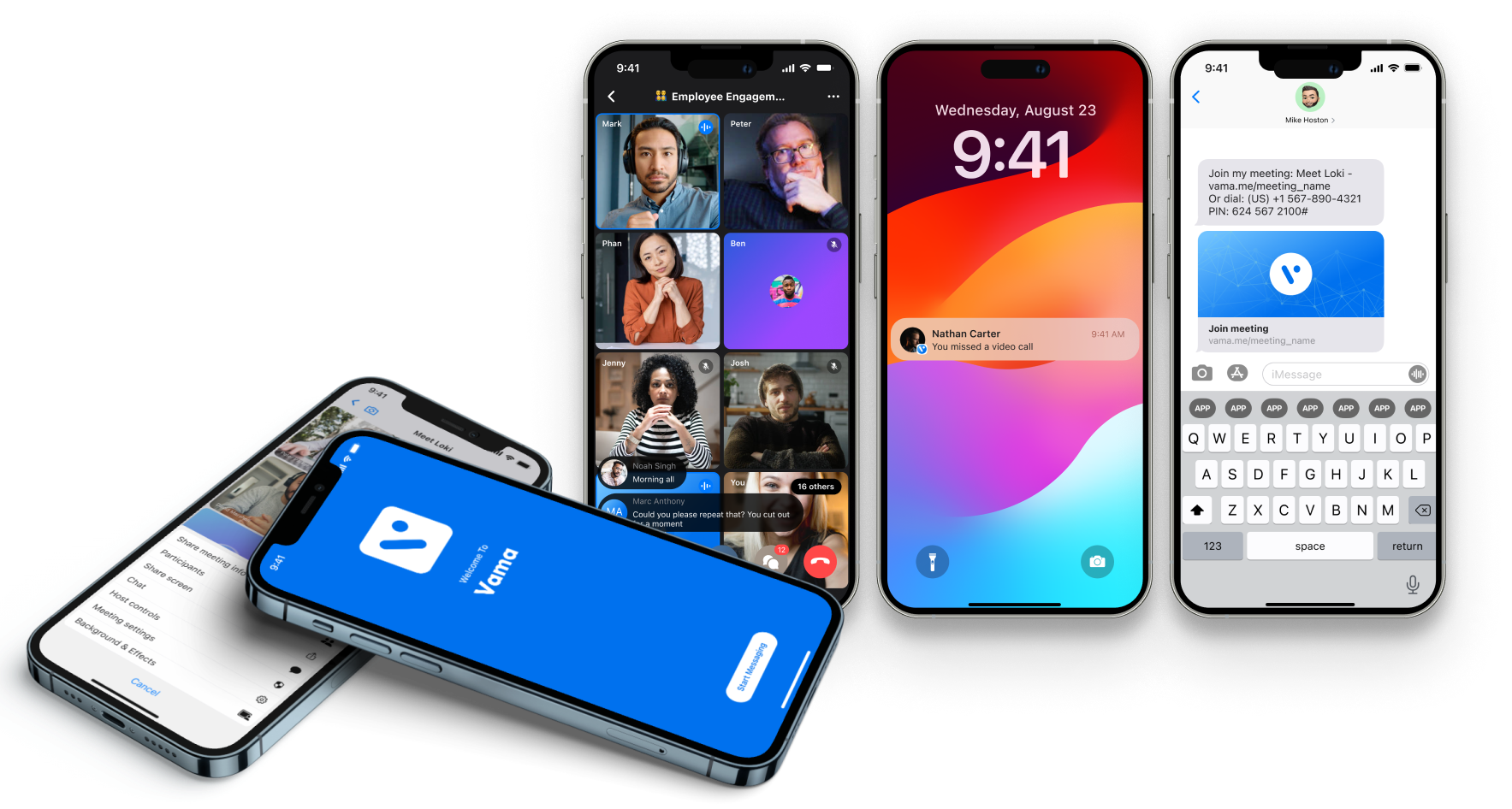
Developing the Meetings experience in Vama
In this case study, we'll dive into how we built the video call feature (or Meetings) for Vama, a chat app designed for professionals. With this feature, users can easily set up and join meetings, streamlining collaboration and communication. Our aim is to make it seamless for professionals to create and take part in discussions, whether they're connecting with fellow Vama users or those outside the platform.
Our stakeholders opted to focus on iOS development, as it offers a cohesive ecosystem that allows for smooth integration of features. This approach ensures a consistent user experience across Apple devices, right from the start.
Optimising the navigation of the Meetings feature
Prominent placement in main nav
Anticipating that Meetings would be a widely used feature among our users, we positioned it within the main bottom navigation alongside other key features such as wallets and chats. This placement ensures easy access and prominence within the app interface.

User flow mapping for Meeting interactions
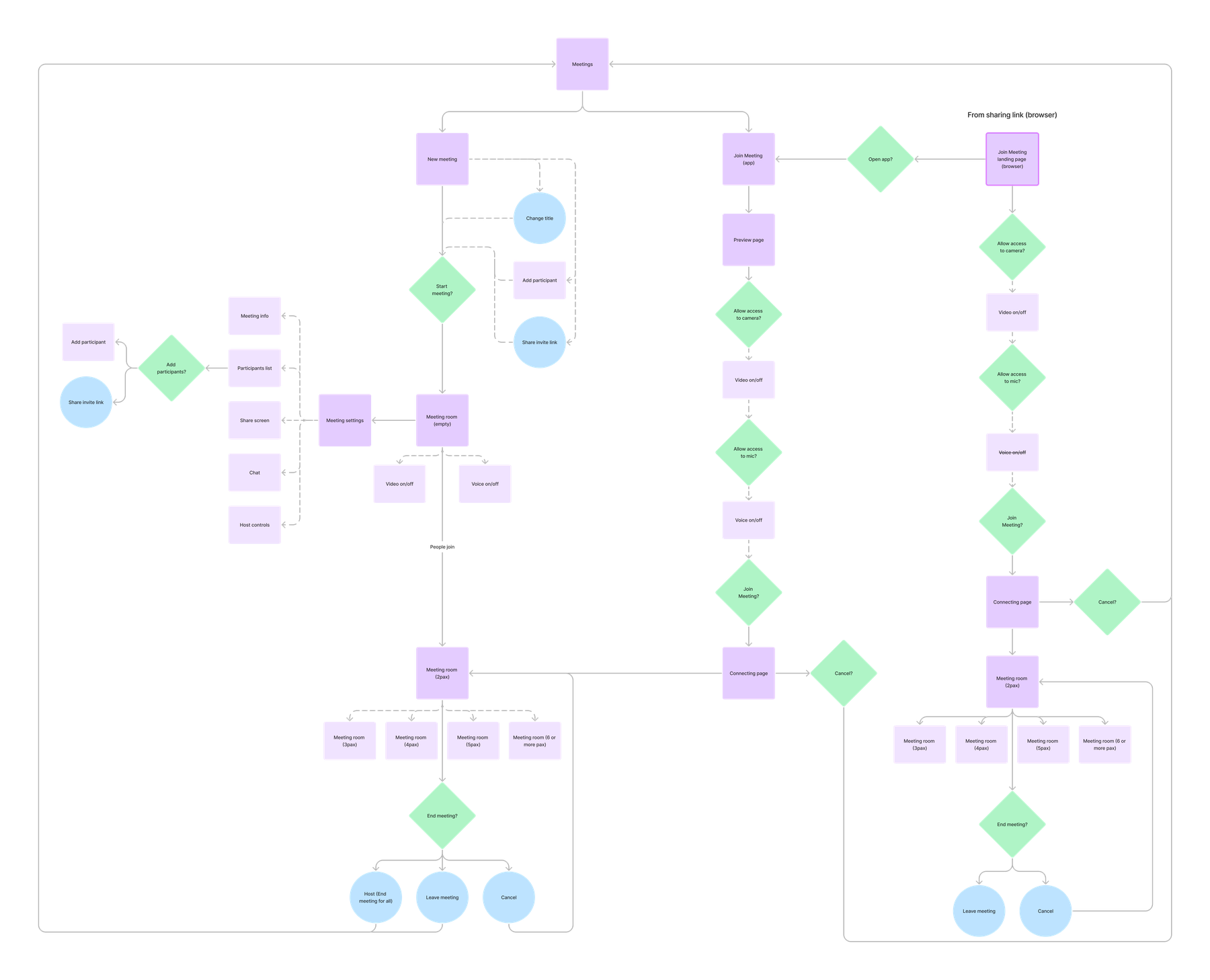
Given the complexity of the Meetings feature, which encompasses different user actions like toggling mic/video and different interfaces for the Vama app or browser, I began by crafting a user flow diagram. This visual representation outlines the diverse scenarios and pathways users may navigate while interacting with the Meetings feature. Primarily, there were two main flows - starting a new meeting, and joining an existing one (either via the app, or a browser).
Designing and refining Vama Meetings
Iterations on the Meetings page
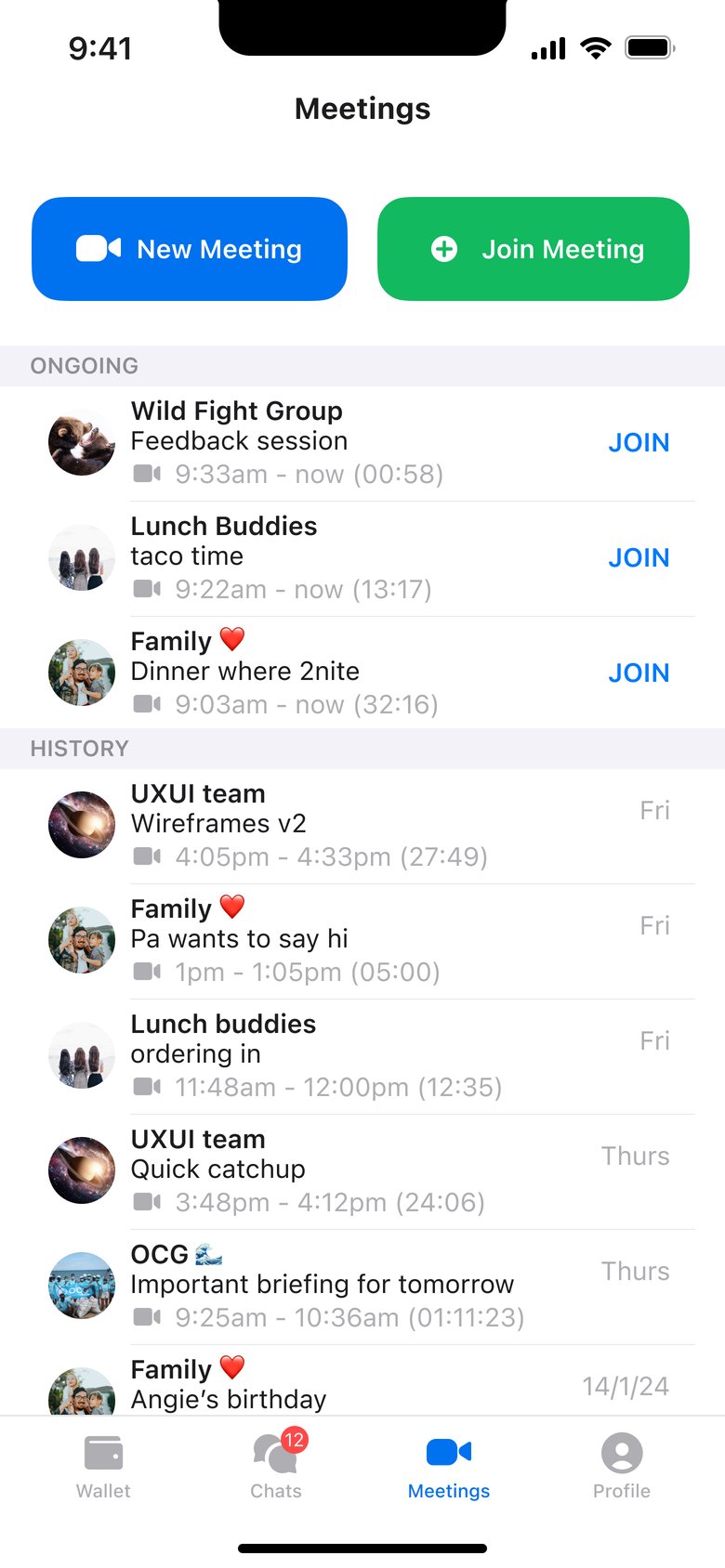
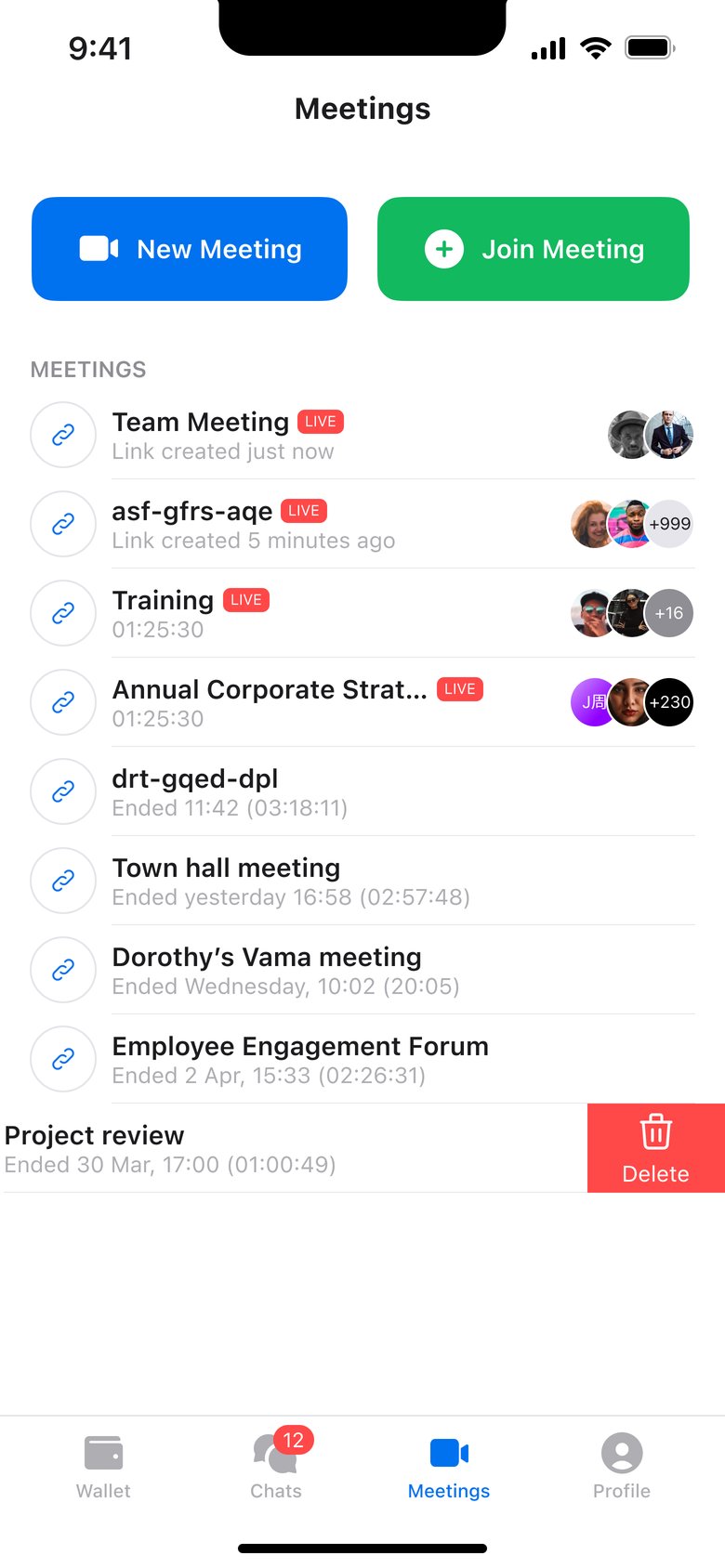
In the beginning, we planned for users to create separate "Rooms" within their Group Chats. However, after discussing with stakeholders, we decided to remove the concept of "rooms" entirely. Instead, each meeting was assigned its unique title. This allowed hosts to invite any participant to each meeting, enhancing flexibility.
I introduced a "live" indicator for ongoing meetings and displayed avatars to indicate participants currently in the call.
I also added a list of past calls below the ongoing ones. This allowed users to quickly restart a meeting with the same participants without having to manually recreate a meeting again.
Incorporating Meeting set-up options
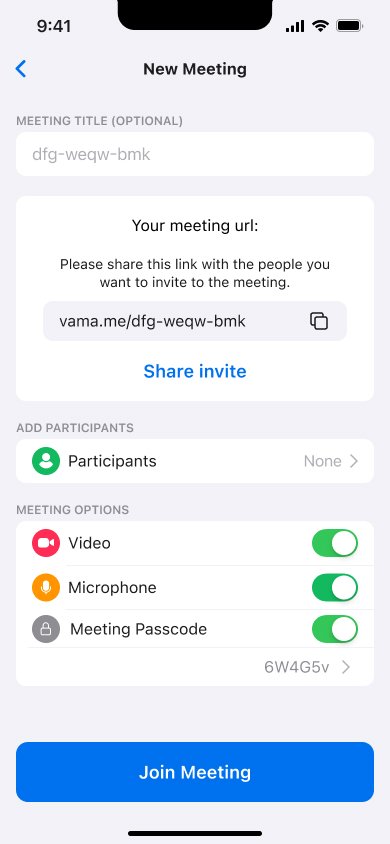
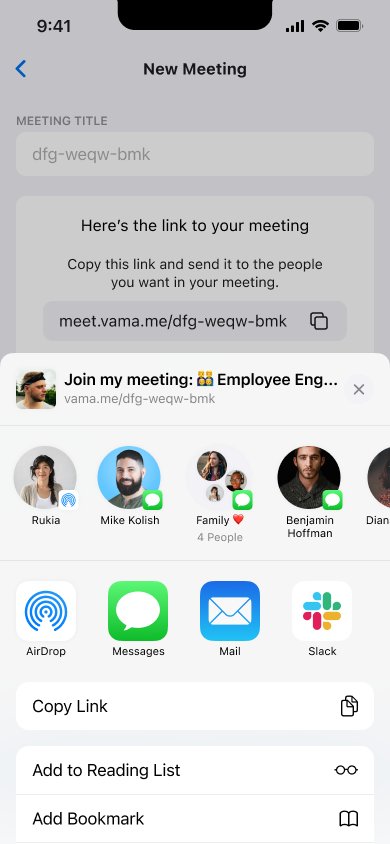
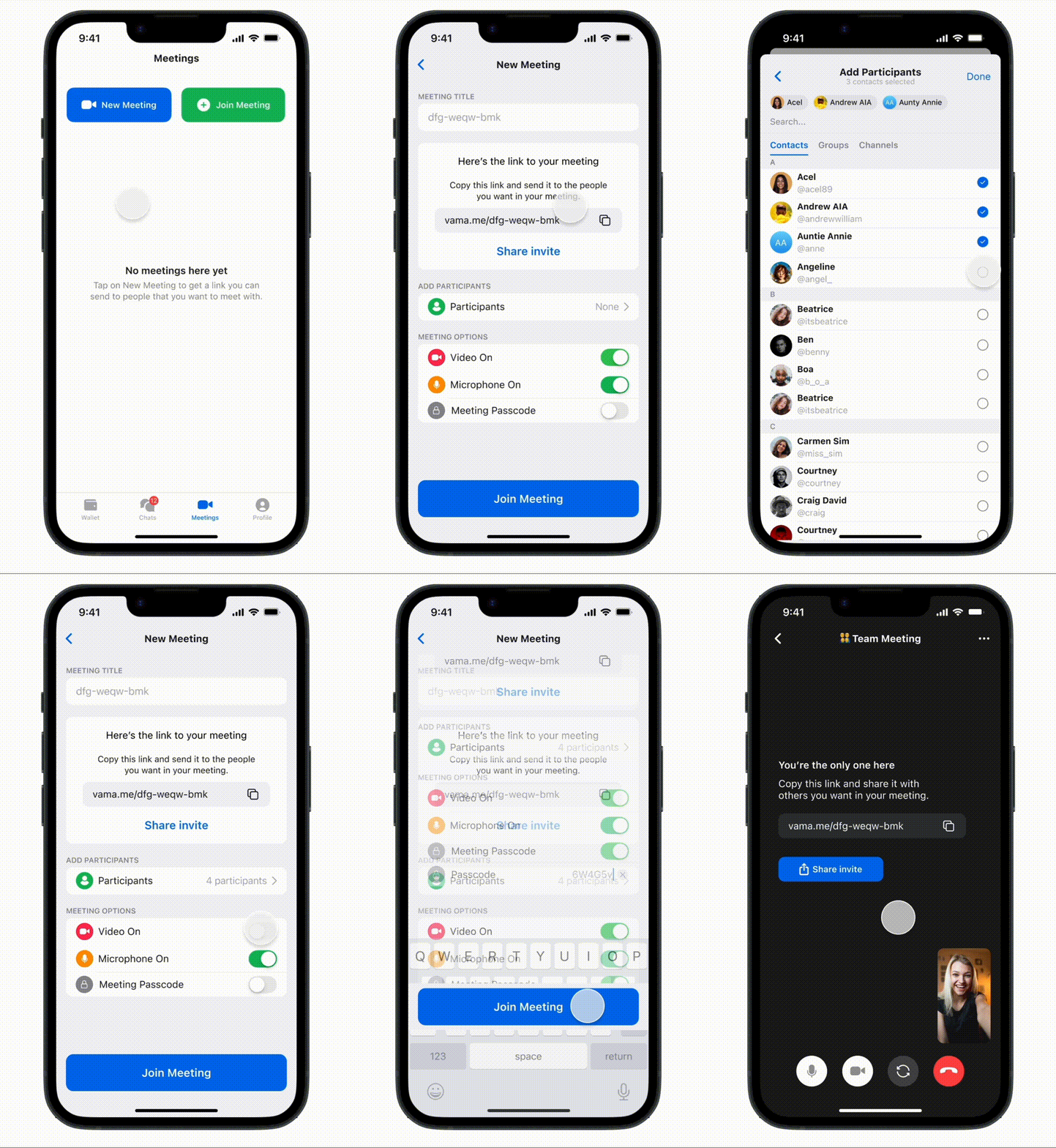
To create a new meeting, the user would start by entering a meeting title, and a meeting URL would be automatically generated. Clicking on "Share Invite" prompts a share sheet, enabling users to easily share the link with non-Vama users.
Additionally, I included options for adjusting video and microphone settings, granting users control over their video before initiating a call. Finally, I added a toggle for setting a meeting passcode to enhance security.
Adding participants
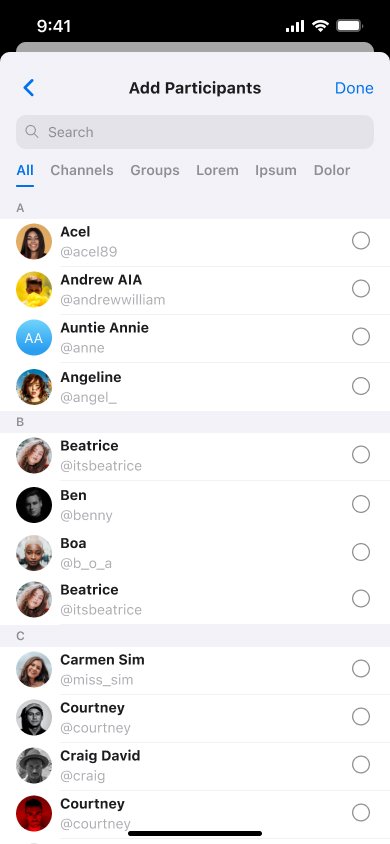
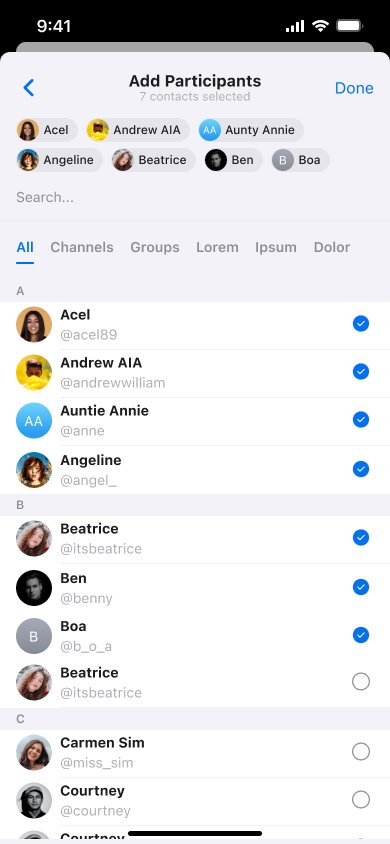
When users click on "Participants", they will land on a "Add Participants" page which includes a search function at the top to help users quickly find and add other Vama users.
I also designed a feature where adding a participant automatically sends them to the top of the page, allowing users to see who they've added.
Initial prototype to demonstrate the Meeting setup functionality
Before proceeding with the rest of the designs, I developed a basic prototype to present to stakeholders, demonstrating the meeting set up functionality.
In-meeting UI
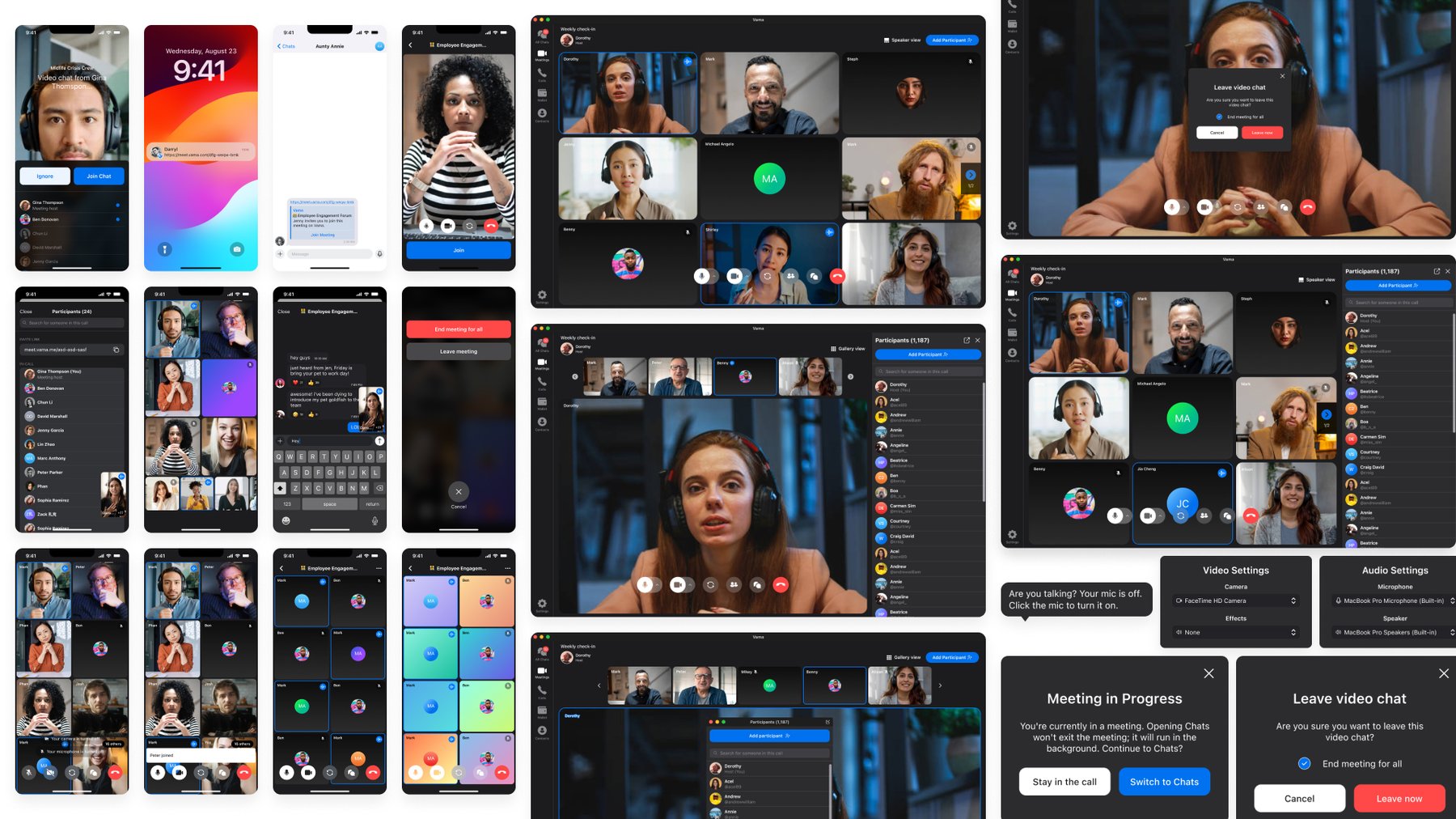
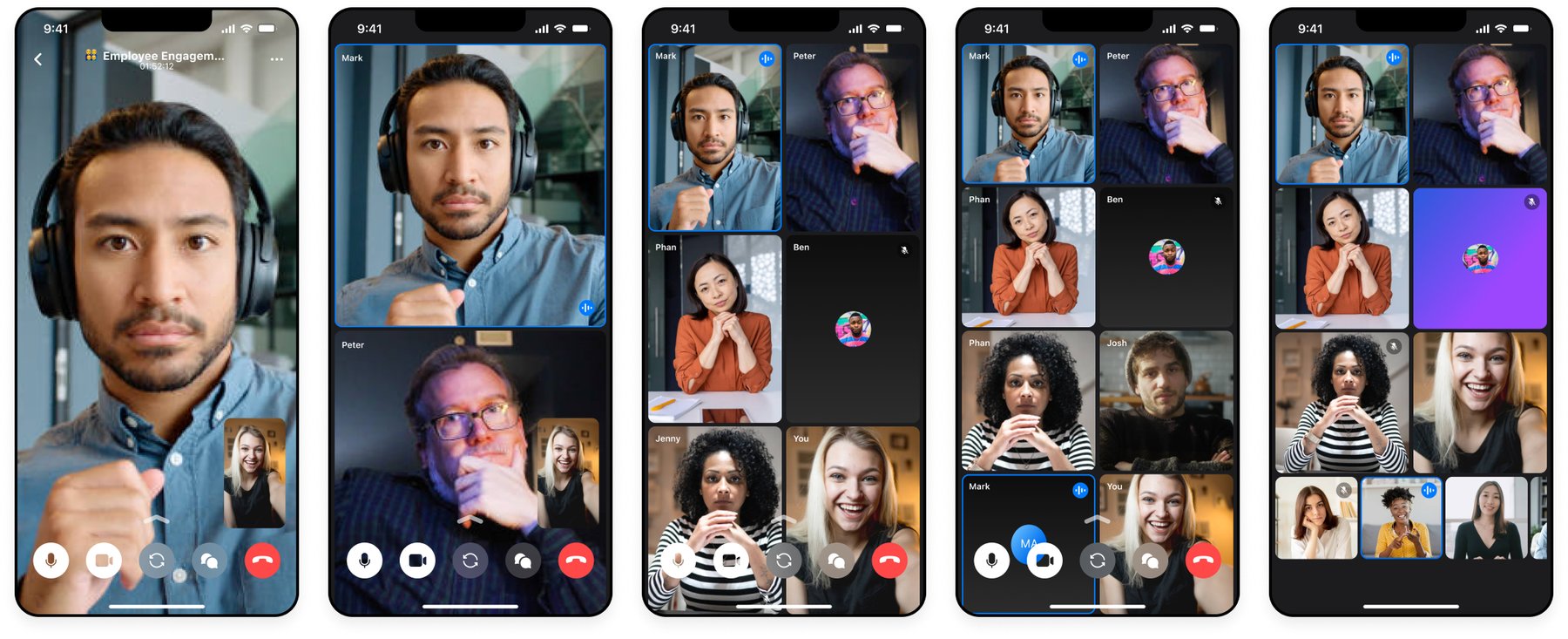
Having completed the design for setting up and joining meetings, I moved on to the next set of screens for the Meetings pages: crafting the in-meeting user interface. Upon thorough examination of other apps in the market, I decided to implement an automatic transition to dark mode once the user enters a meeting.
Dark mode offers several benefits, particularly in the context of meeting applications. It reduces eye strain, and creates a more comfortable viewing experience, enhancing user comfort and reducing fatigue.
Below are the various screens I created to demonstrate the meeting UI's adaptability to varying number of participants. Each screen offers a visual representation of how the UI dynamically adjusts based on the number of participants present in the meeting.
Crafting a responsive design for the desktop experience
Recognising that many professionals will be using desktops, I also crafted a responsive desktop interface to cater to corporate users.
The Meetings page
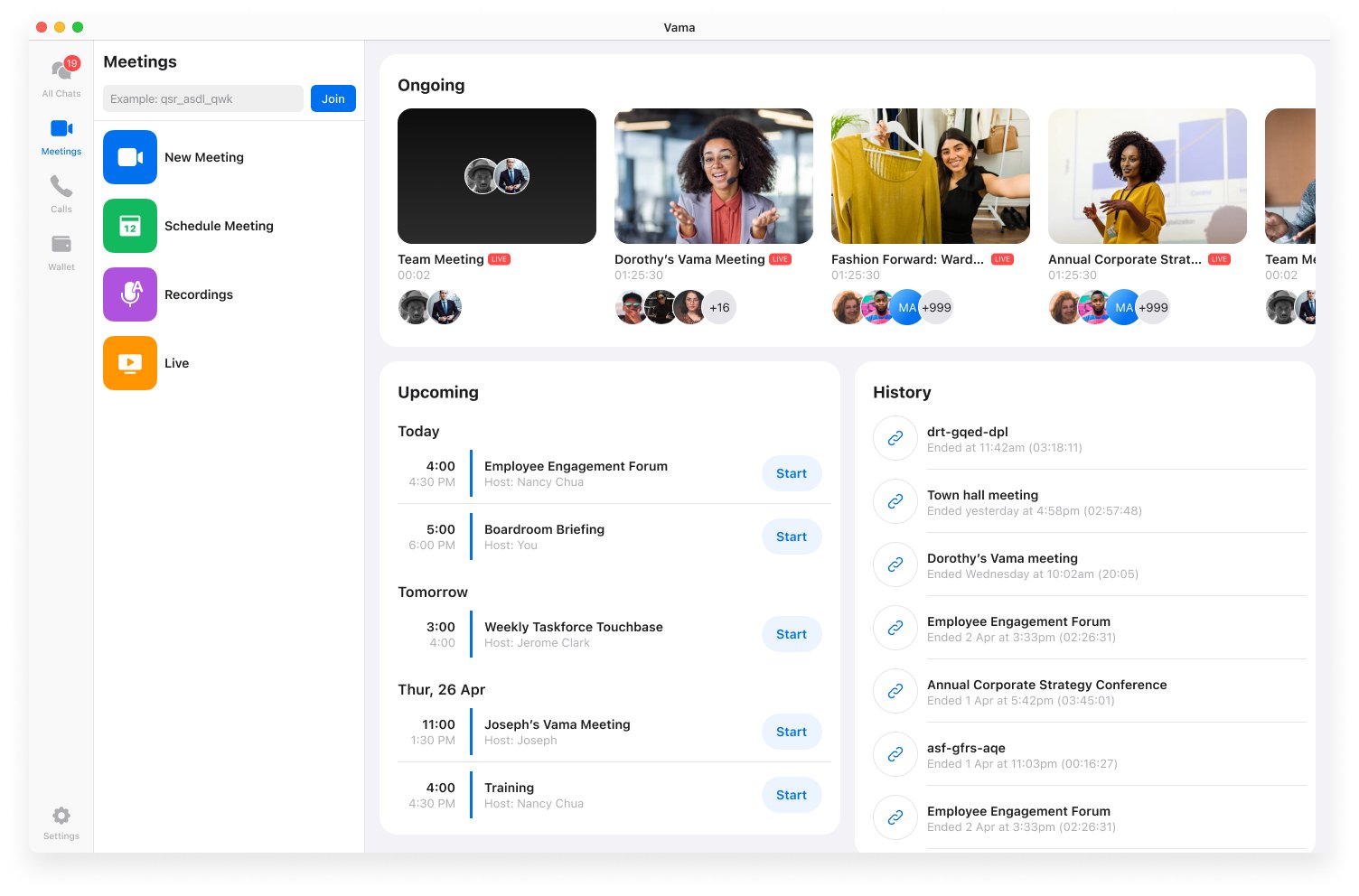
I began by implementing a sidebar menu on the left-hand side to offer users easy navigation to start, join, or schedule a meeting.
The main screen on the right displays a carousel of ongoing calls, allowing users to scroll horizontally for quick browsing. Each call includes a thumbnail preview and information like meeting name and participant avatars.
Beneath these elements, two sections were included: "Upcoming Meetings" (a feature slated for future development) and a history of past calls.
Setting up a Meeting
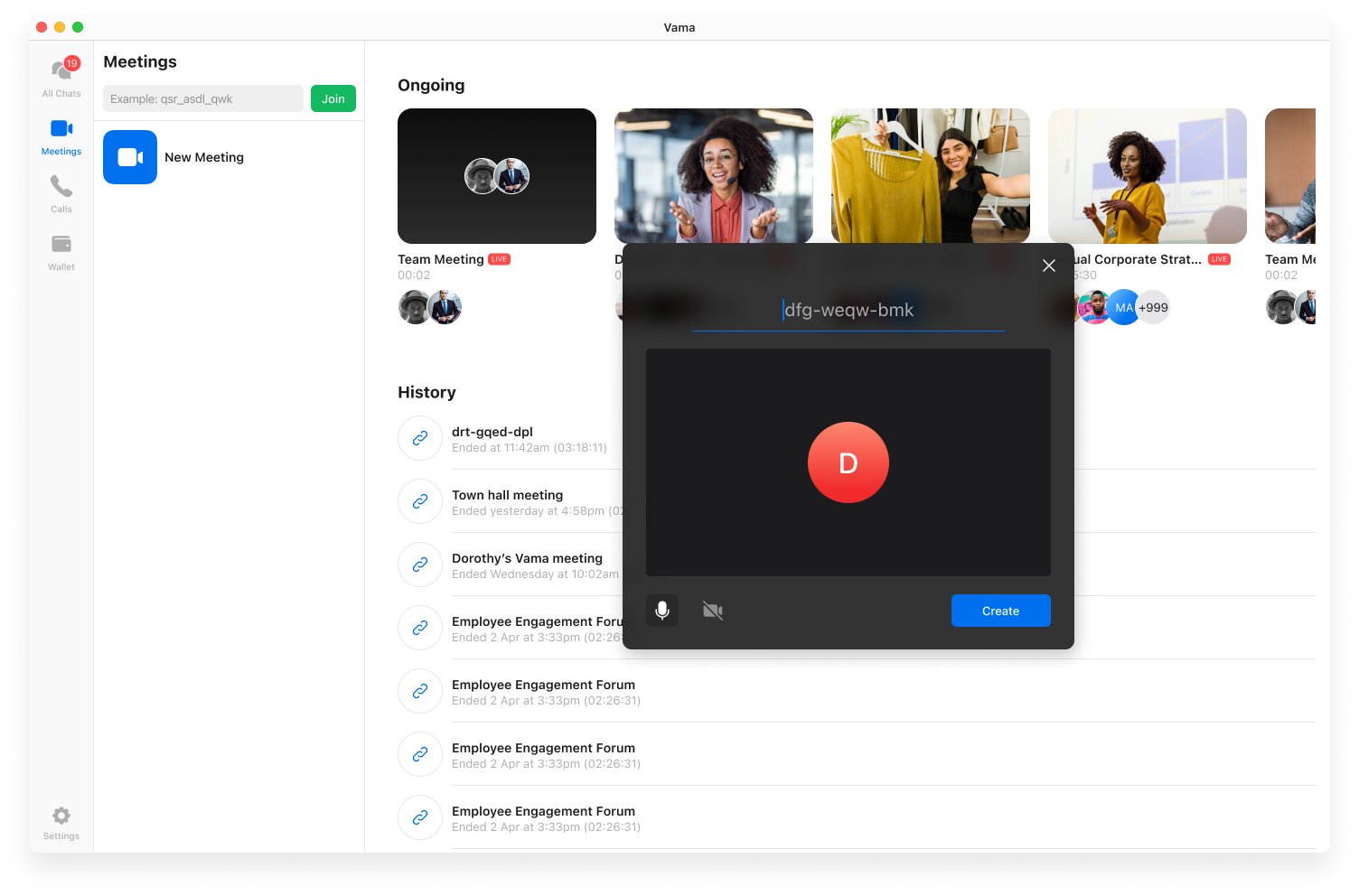
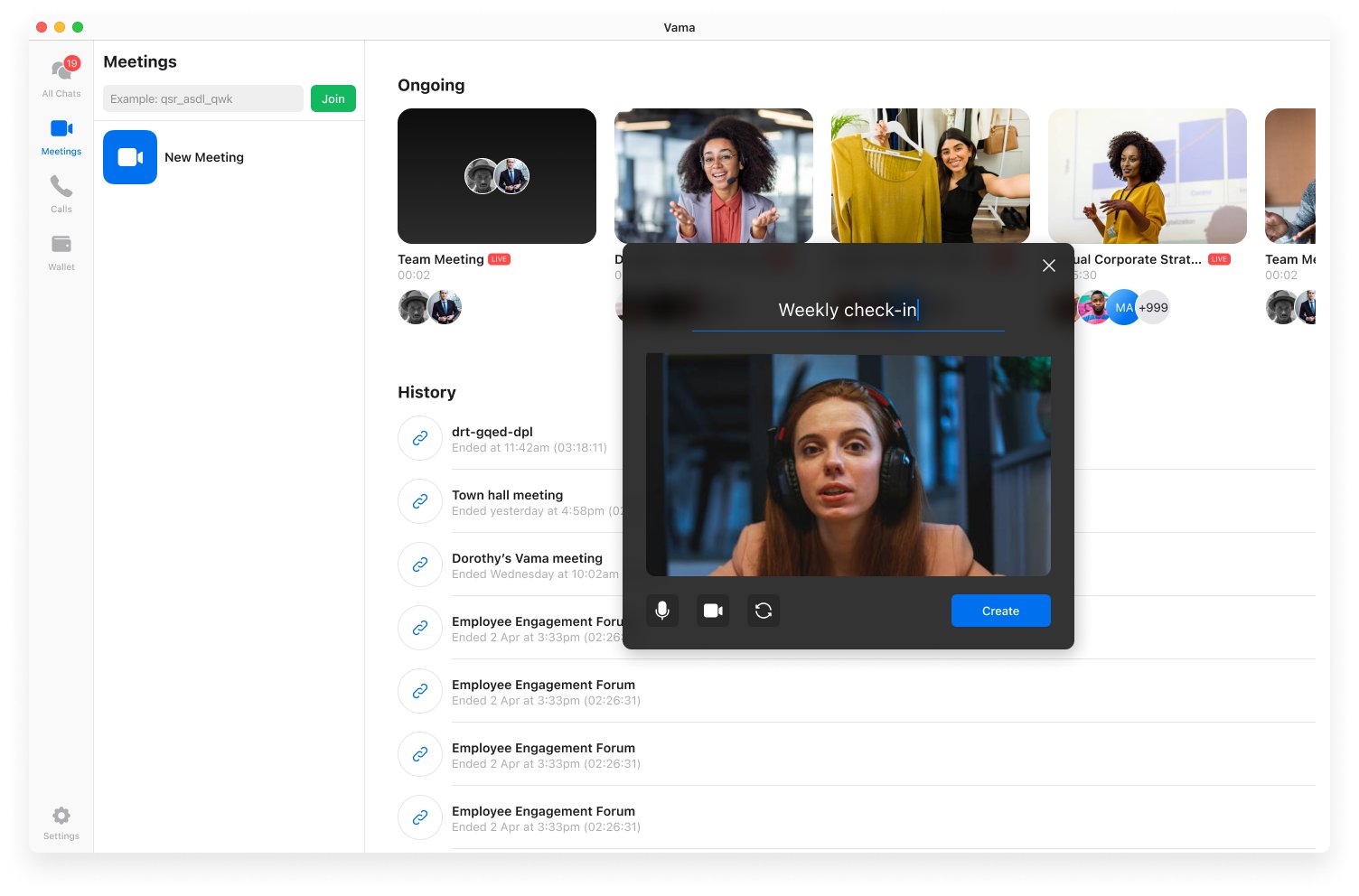
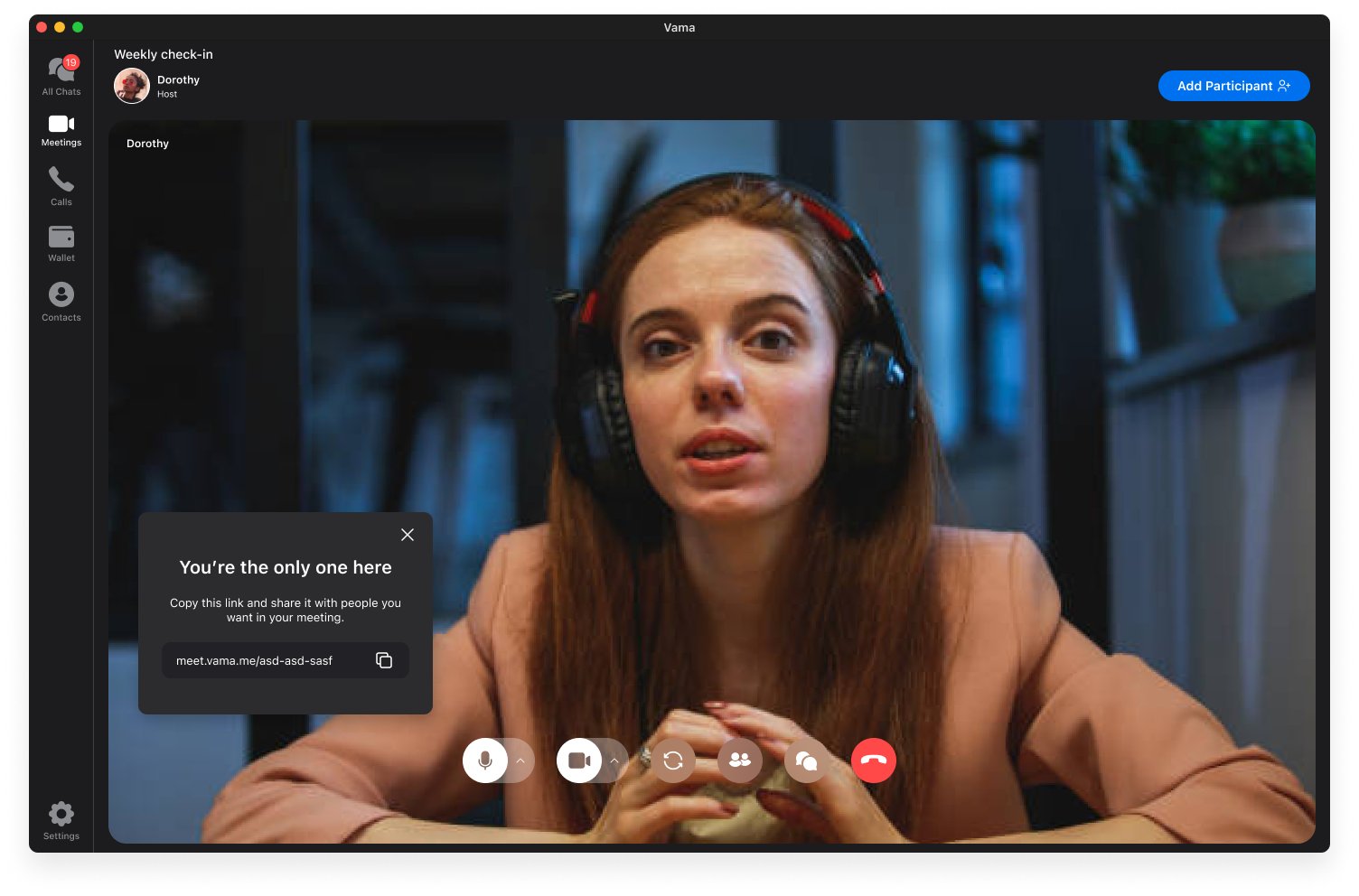
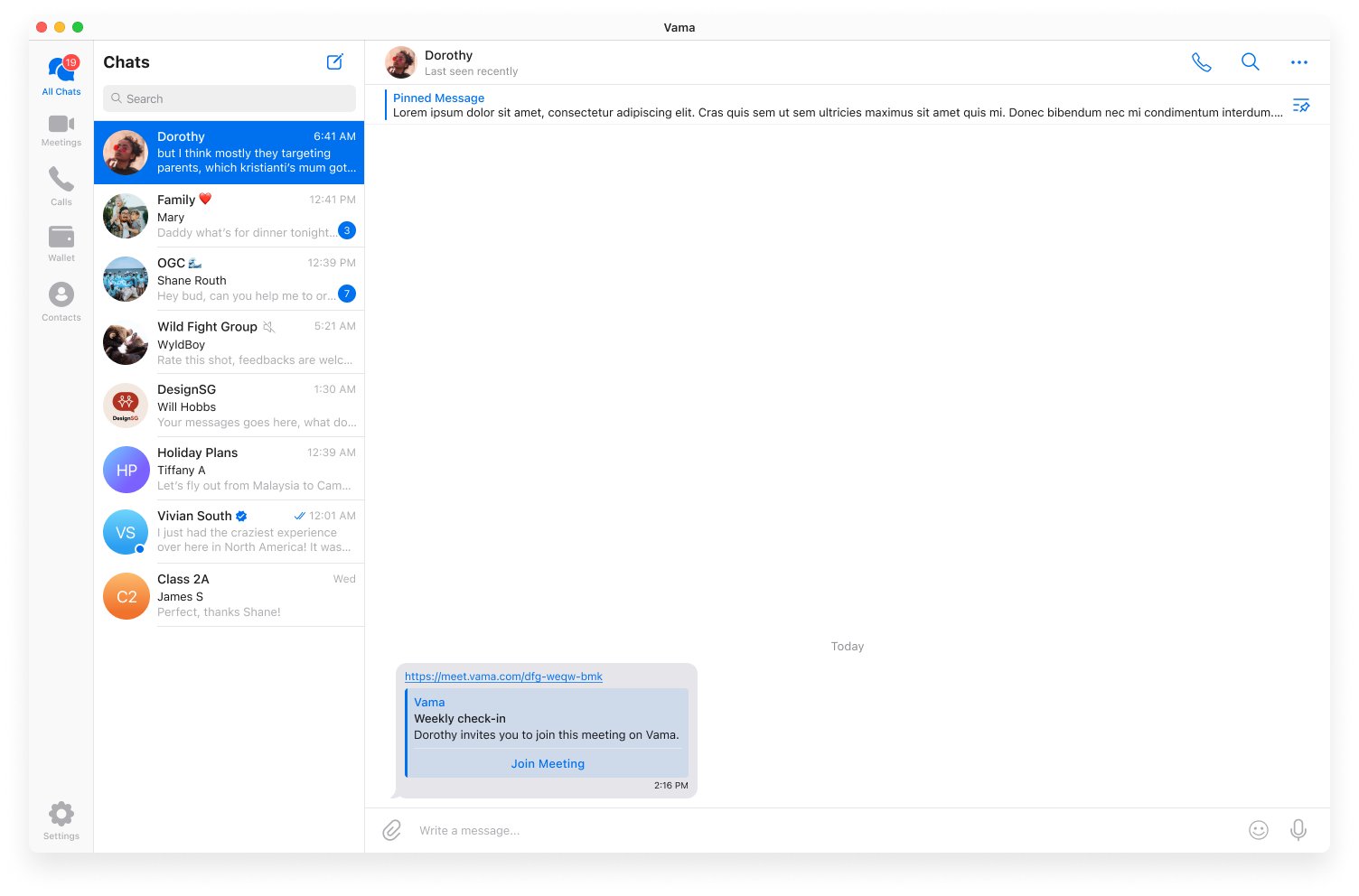
In this flow, I wanted to make it super quick to start a meeting and share it with others. When the user selects "New Meeting," a popup appears with a video preview, allowing them to toggle their camera. They can also set a meeting title. Clicking "Create" instantly generates both the meeting and a shareable link. This two-click approach makes it effortless for busy professionals to create and share meetings.
Meeting participants
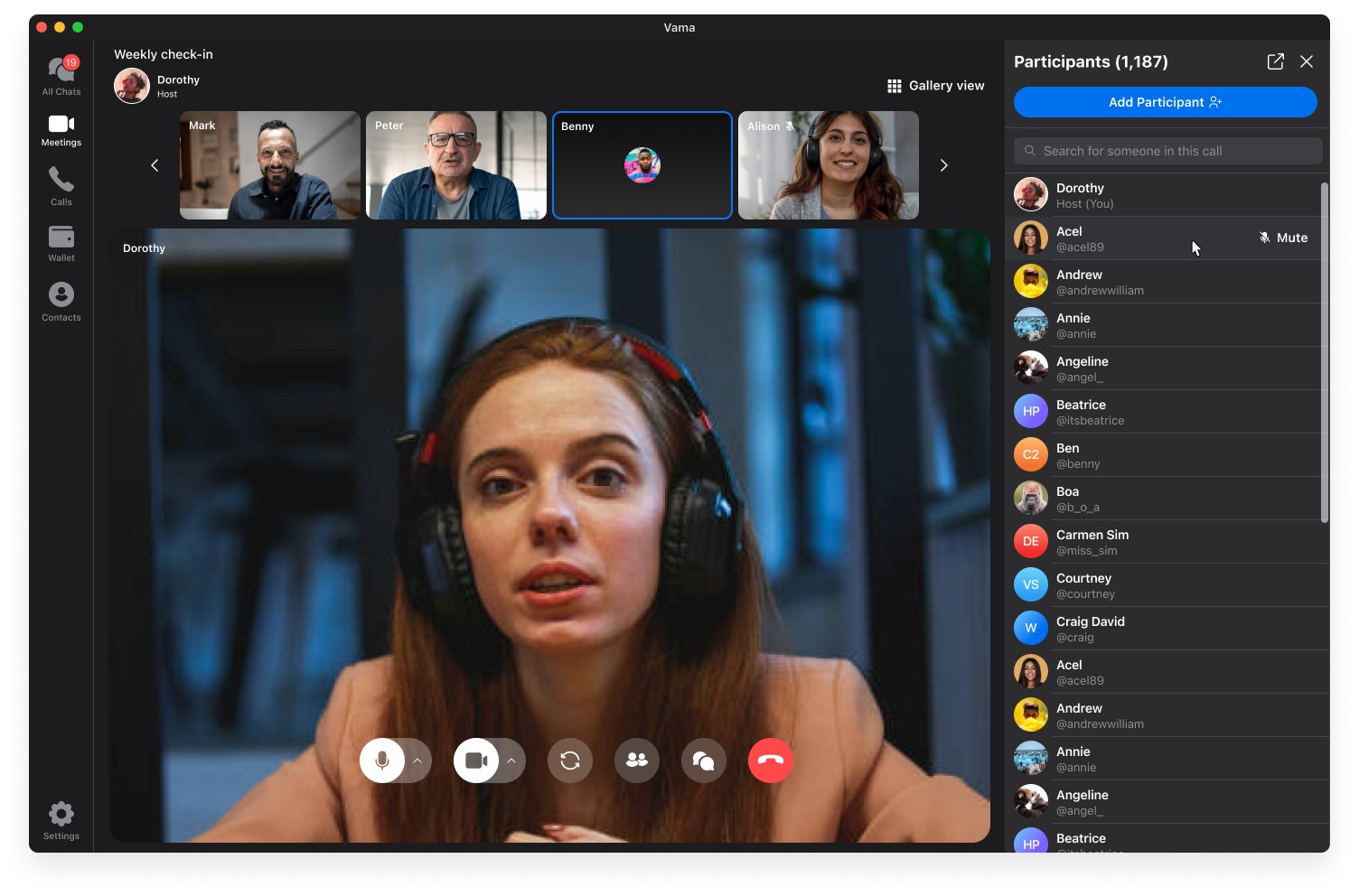
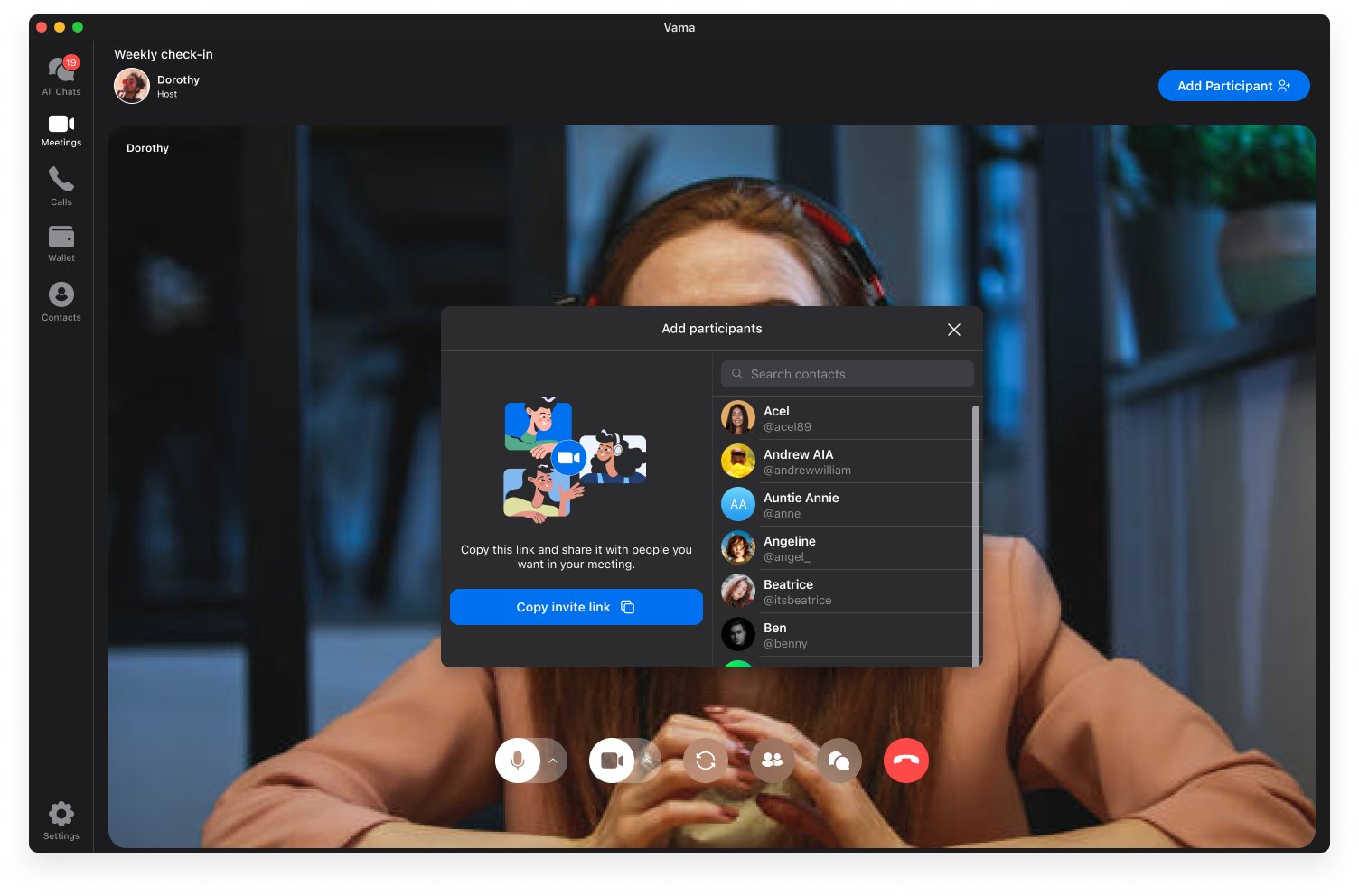
Clicking the Participants icon in the video controls opens a panel on the right, displaying a list of participants. I added a search function to provide quick user navigation in case of numerous participants. Users can also hover over each participant to mute them. Clicking the "Add participant" CTA prompts a pop-up offering two sharing options: through a shareable meeting link or by selecting from a list of Vama contacts.
Chat functionality
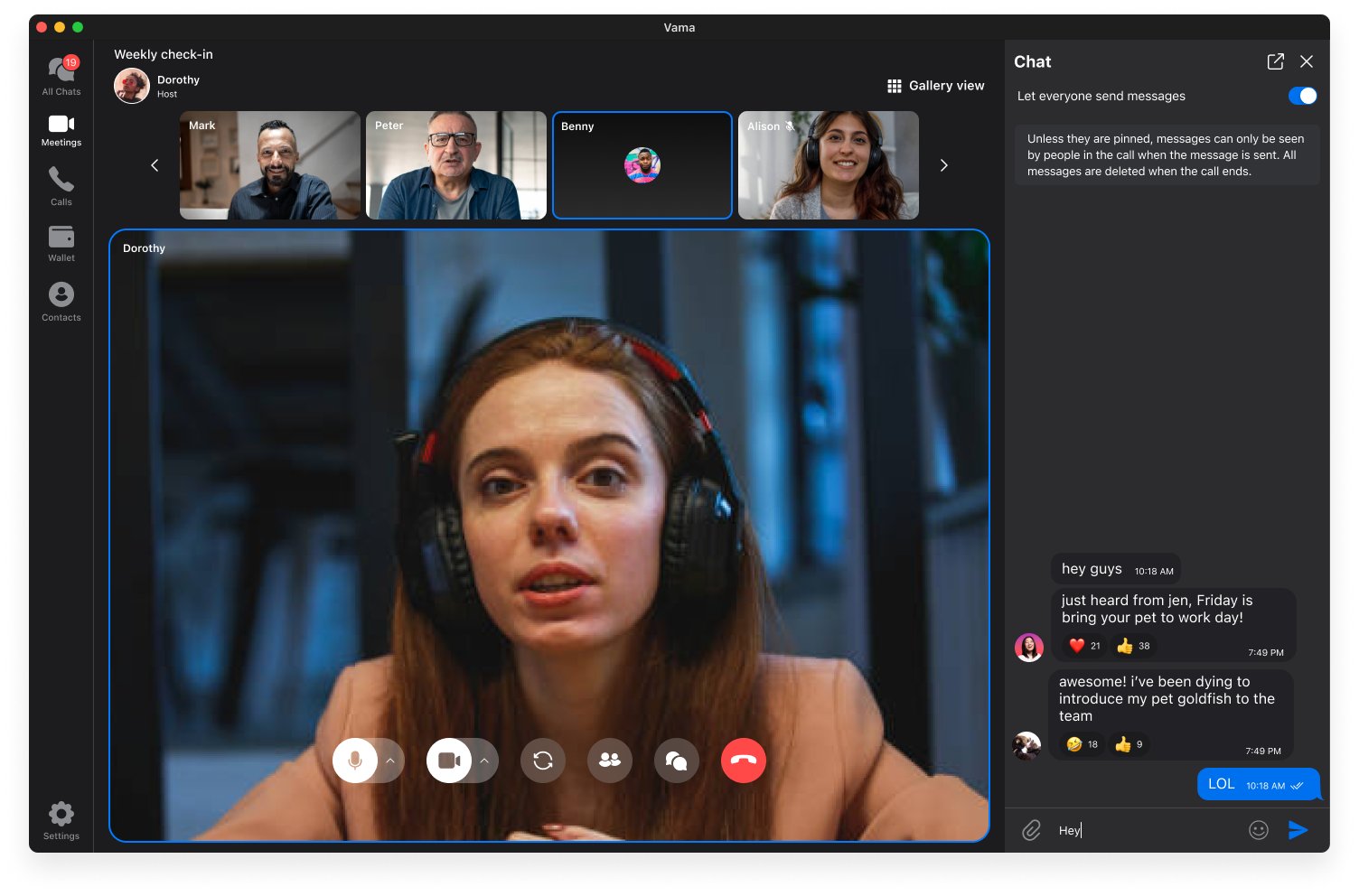
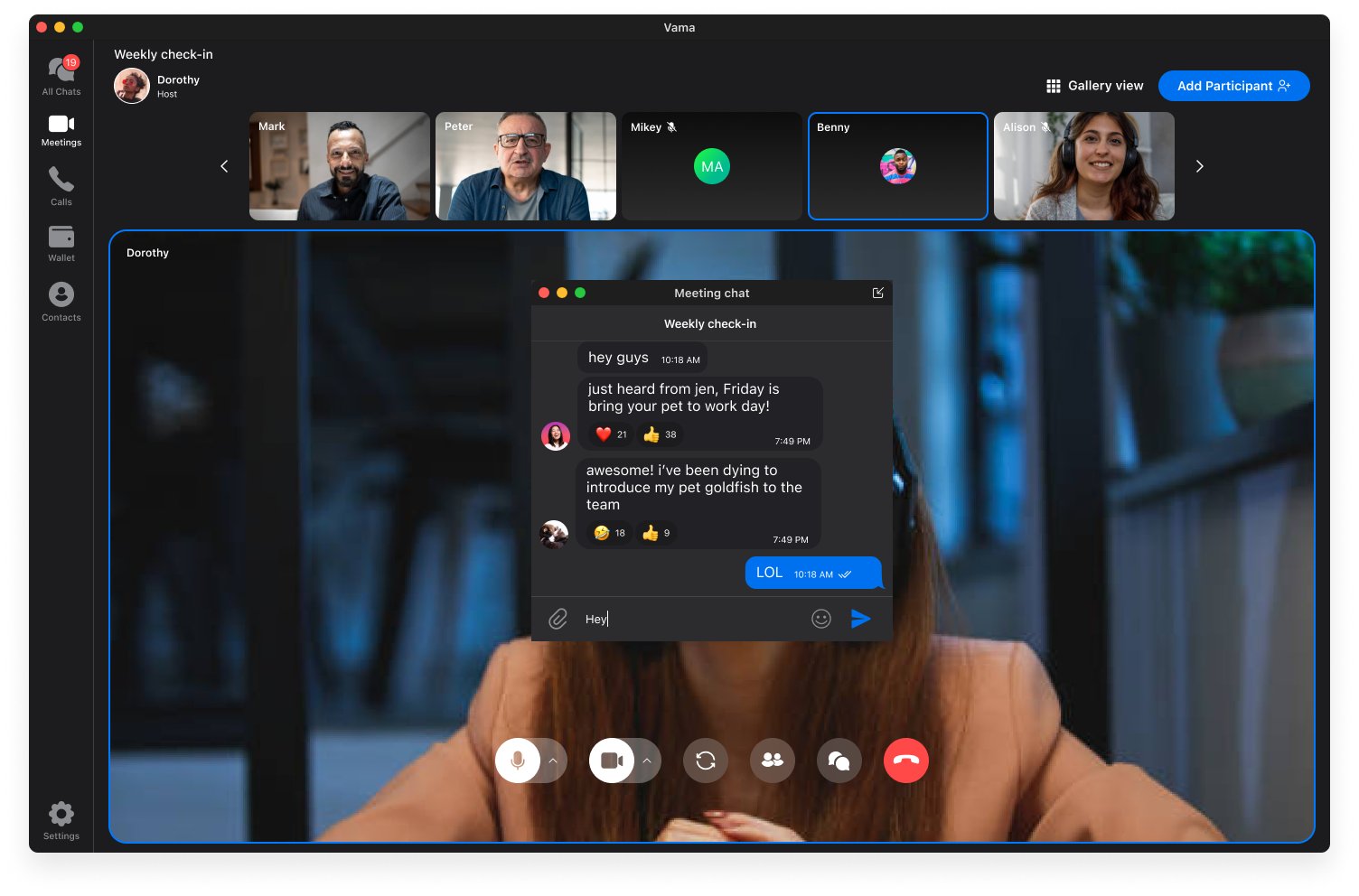
Just like the Participants page, I set up a sidebar view for the in-meeting chat. It keeps things consistent and easy to navigate. The host has the option to disable participants from leaving messages, ensuring focused communication when necessary. I also added a pop-up mode option, so that users can customise their meeting experience to suit their preferences and workflow.
What's next?
Our developers are currently working on integrating the Meetings feature into the Vama app. I'm excited about the progress and look forward to unveiling the updated version on the app store soon. In the meantime, you can check out some of the other screens I designed for this Meetings feature below!